
If your content has complex imagesVideo and Audio, or STEM content, make sure to check their additional entries in the Rubric.

Universal Design Goals in Web Content

The Universal Design Goals below are based on the Electronic Accessibility Rubric. All employees are expected to work toward meeting Universal Design Goals for their content.

In the text editor, use the Paragraph drop-down menu to select heading levels.
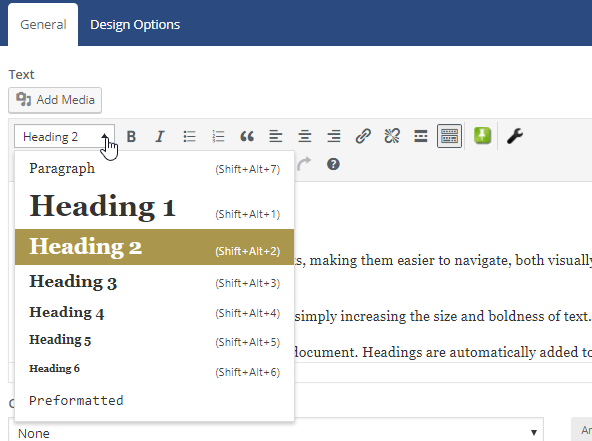
Headings in WordPress

Select the link text, then click on the Insert/Edit Link icon.
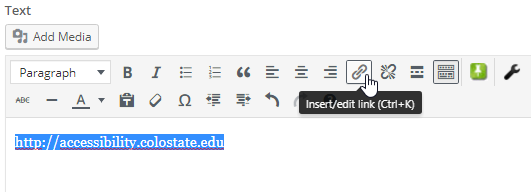
WordPress Insert/edit link button (Ctrl+K)

Click on the Settings button to get more Link Options.
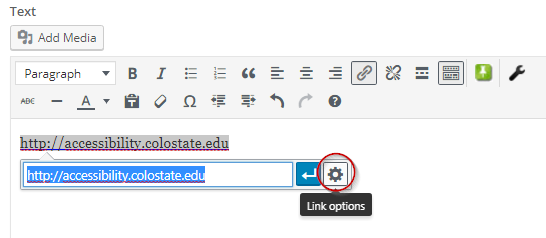
WordPress Link options button on insert link dialog

In the Link options window, enter the destination URL and the descriptive link text in the appropriate fields. Once these are both added, click Update to apply changes.
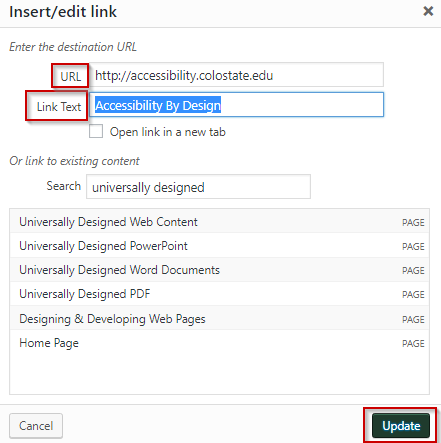
WordPress edit link options, showing separate fields for URL and Link Text, and Update button to apply changes.

Using the Media Library

To add alternate text in WordPress, click on the image in the Media Library and edit the Alt Text field.
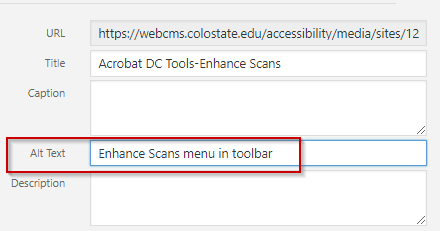
Alt Text field in WordPress media library

Coding in HTML

When editing HTML code directly, include the alt attribute (“alternative text”) for all images. The alt attribute is added after the path to the file:

  • Example: <img src=”file-name.jpg” alt=”Descriptive text goes here.” />

Alt text should describe the meaning of an image rather than its appearance. For example:

  • Poor: <img src=” lab_sign.gif” alt=”Sign hanging on lab door.” />
  • Better: <img src=”lab_sign.gif” alt=”Each laboratory has safety policies posted on the door.” />

Purely decorative images (graphics that convey no information), require a “null” or “empty” alt attribute. The null attribute is a signal to screen reader software that the image is unimportant and can be skipped. Use this with caution – ensure that the image truly is only decorative.

Example: <img src=”spacer.gif” alt=”” />

  • Use tables for tabular data only, not as a framework for page layout.
  • Keep tables as simple as possible, and try to avoid nesting tables inside one another.
  • Add captions to tables using the <caption> tag. A caption will typically provide an adequate summary of the table’s contents. Complex tables may need a more detailed explanation using the <table> tag’s “summary” attribute.
  • Use a plugin that marks header rows correctly as <th>. If this is not possible and you have to edit the code manually, replace <td> (table data) tags with <th>(table header) tags to indicate the special function of those cells as column labels.

Ideally, your template should have been designed with colors that have good contrast. If adding colors to a page, check contrast first. Visit Color Contrast Tools page for methods of checking the colors on your site.

Full Accessibility in Web Content

Full Accessibility items are necessary to make the content fully accessible. The expectation for employees to work toward full accessibility for their content is dependent on the employee’s role; see the employee responsibilities page for more information. Full Accessibility items may require additional support or alternative access if needed for an accommodation.

Complex images can include charts, graphs, diagrams, timelines, and maps, among others. Provide a long description that conveys meaningful information about the image.

Plugins can unintentionally create additional barriers on your website. Choose plugins that have been tested for accessibility.

Visit Web and Application Tools for more information on accessibility checkers for websites.

Applicable Concepts

Alternative text (alt text) is a written alternative to an image. It’s a short description that can be read aloud by screen readers for users with visual impairments.

More about Alternative Text

Audio description is like alternative text for a video. It’s a narrative explanation of visual or nonverbal information.

More about Audio Description

Color contrast describes how one color stands out from another color. It’s especially important to consider the color contrast between text and its background, and between sections depicting meaning such as pie charts, maps, etc.

More about Color Contrast

Links should tell the user exactly where they’ll go if they click on them. They should make sense when taken out of context of the surrounding text.

More about Descriptive Links

Headings provide information about the structure of the document at the code level, creating an outline that helps users navigate the content.

More about Headings

When images are complex, simple alternative text is not enough. In these cases, long description details everything the audience is expected to get out of the image.

More about Long Description

A table header row is the top row of a table, which acts as a title for the type of information found in each column. It’s important to mark table headers at the code level so the information is structural.

More about Table Header Rows

Captions, or subtitles, provide a visual alternative to audio information. Transcripts provide a structured and accurate text version of audio content for video or audio files.

More about Captions and Transcripts