Where to Start With Canvas

With Canvas content, consider consistency of layout and formatting within a course shell, including using features such as headings, descriptive links and alternative text as in any other type of document.

Also consider accessibility when adding external content to a course. This includes uploaded documents such as PDFs, video or audio files. It also includes more complex items such as quizzes, electronic proctoring, interactive assignments and electronic textbooks.

TidyUp for Canvas — File Cleanup Tool

Following the RAM: Remove, Adapt, Make strategy, the first step is to determine which files and content are current and which can be removed from Canvas. TidyUp allows you to find and delete unused files and folders, find where files are linked in a course, and view a detailed list of everything present in a course.

Universal Design Goals

The Universal Design Goals below are based on the Electronic Accessibility Rubric. All employees are expected to work toward meeting Universal Design Goals for their content.

Anthology Ally is an accessibility checker within Canvas. This tool identifies content with common accessibility issues and offers guidance on how to fix them. Use Ally as a tool to help meet Universal Design Goals. See the below information on Using Anthology Ally for more information on common issues to prioritize.

Ally also provides alternative formats for students, which is essential to meeting Universal Design Goals for PDFs. Do not disable the alternative format option in your courses.

The default course template in Canvas is designed with accessibility in mind. Benefits of using the template include:

  • Students experience a consistent layout in all courses, which helps them to find information more easily, and
  • Headings structure is set — you just need to update the text while keeping the formatting.

TILT’s Syllabus Template is also accessible, if you are creating a document version of your syllabus.

In the text editor, use Canvas’ built-in accessibility checker to check for issues within Canvas pages. The checker finds a few different issues than Ally, although some are the same, such as images lacking descriptions.

Click on the accessibility icon at the bottom of the text editor to see the issues:
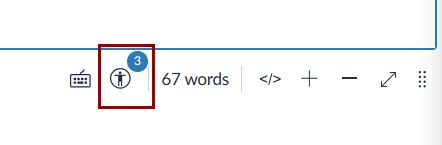
Canvas accessibility checker icon in text editor

Within the text editor, use the Format drop-down menu to select heading levels. In Canvas, Heading 2 is the highest level you can choose.

Also use the bullet and numbering options available from the formatting toolbar instead of manually typing lists.
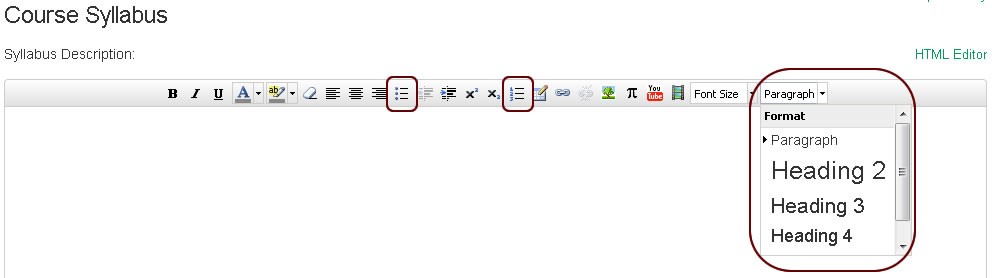
Text Editor with Paragraph dropdown menu expanded to show headings options

Links should be descriptive, telling the user where they’ll lead. They should make sense when taken out of context of the surrounding text.

Nondescriptive link examples: “Read more” or “https://accessibility.colostate.edu/

Descriptive link example: CSU Accessibility Center

Video: Adding Descriptive Links in Canvas

Written Instructions — Method 1

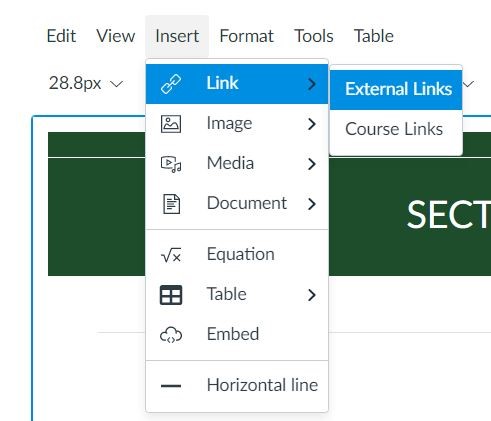
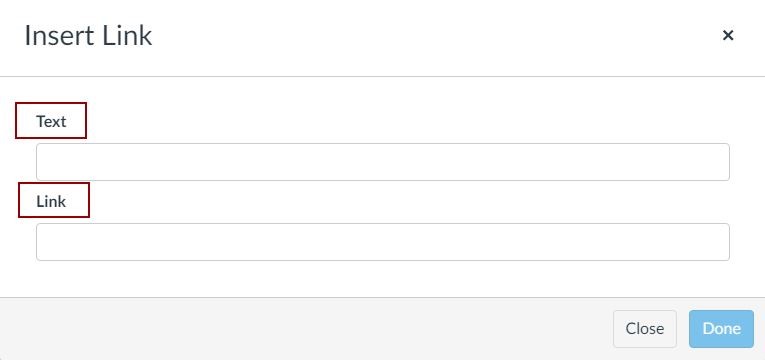
  1. In the text editor, click on the Links icon or use the Insert menu to add a link. Insert Link, External Links
  2. Write the descriptive text in the “Text” box.
  3. Write the link address (URL) in the “Link” box. Insert Link dialog with text entry boxes for Text and Link
Method 2

Another method of adding a descriptive link is to edit an existing link instead of inserting a new one.

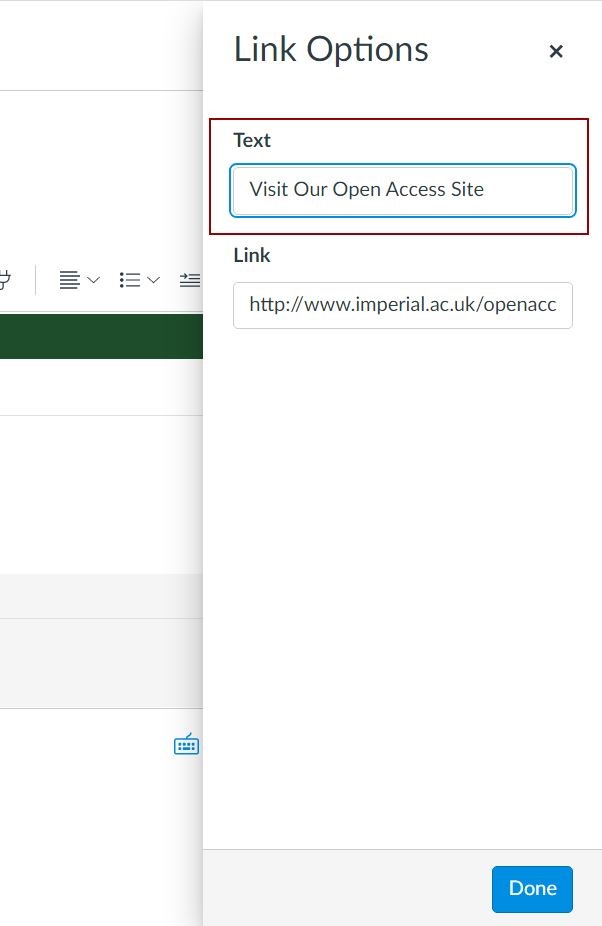
  1. Click on the existing long URL in the text editor and select Link Options. Link Options popup above a selected url
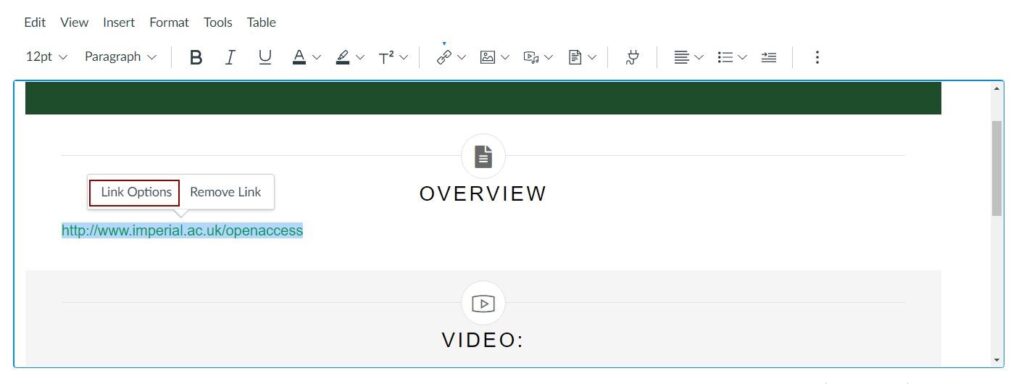
  2. In the Link Options window, ensure that the Text field contains descriptive text.Link Options window with text entry box for Text

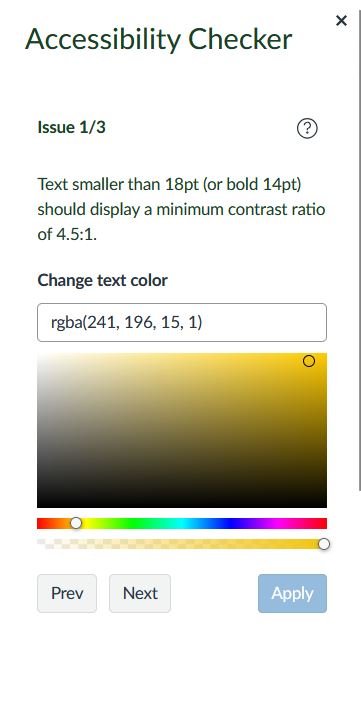
Use Canvas’ built-in accessibility checker in the text editor to check for color contrast issues within Canvas pages.

  1. Click on the accessibility icon at the bottom of the text editor: Canvas accessibility checker icon in text editor
  2. If any text has insufficient contrast, the checker will allow you to change colors using the color picker. This allows you to see when you find a shade that has enough contrast. Canvas accessibility checker, prompt to fix contrast with color picker
Provide basic image descriptions/alternative text for images in Canvas. The video below shows how to do this during upload. You can also use Anthology Ally to add image descriptions.

Video: Adding Alt Text in Canvas

Written Instructions

You can enter alternative text at the same time that you upload an image.

At the bottom of the Upload Image window, type the image description in the Alt Text box before submitting the image.
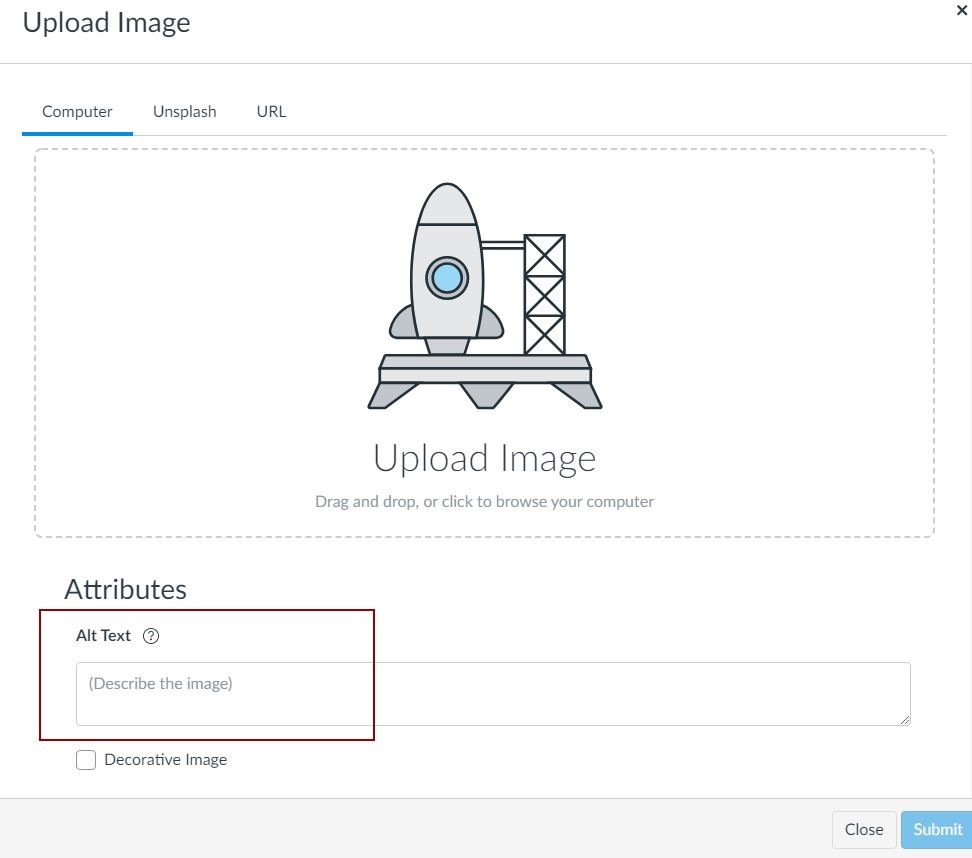
Upload Image window with alt text box under Attributes

Simply providing your PowerPoint files alongside recorded lectures makes a huge impact for many students:

  • Many students use assistive technology for note-taking. Note-taking technology allows students to make notes directly on PowerPoint slides for later study.
  • Students with visual impairments benefit greatly from access to PowerPoints during a lecture or presentation. This allows them to keep up with the content.
  • Students in general benefit from being able to read the PowerPoint themselves in addition to hearing the content during a lecture or presentation.

One very easy item that makes a big difference for students is how you name your files. Use descriptive file names to help students identify the correct files after downloading them.

Electronic textbooks create additional barriers for students. They often need to request alternative formats that are accessible with their assistive technology, and are unable to access interactive assignments in the same way as other students.

Advocate with publishers for their e-textbooks and interactive courseware to be designed accessibly for all types of assistive technologies, not just screen readers.

TextAid is a text-to-speech tool that is available for all students in Canvas. It is automatically enabled in the course navigation menu. Do not disable this tool, as it is essential for many students’ assistive technology accommodations.

Anthology Ally: Universal Design Goal Issues

Anthology Ally is a Canvas plugin that allows you to check for accessibility within an entire Canvas course and guides you through fixing problems. All PDFs uploaded to Canvas meet Universal Design Goals without additional steps, unless the PDF is a poor quality scan.

See the below information on common issues to prioritize.

As long as the scan is good quality, nothing further is needed to meet Universal Design goals. The red low-score dial will remain, but because of the alternative formats option for students, good-quality PDFs meet the minimum requirements for Universal Design. See PDF – Scanned for information on ensuring a good-quality copy.

Students can download an alternative format (OCRed PDF) as a more accessible version to use with their assistive technology. Do not disable the alternative formats option, as this provides Universal Design for scanned PDFs.

Instructors can also use Ally as a text recognition tool for PDFs being shared on other platforms besides Canvas. Simply upload files to a Canvas course and download the OCRed PDF from the alternative formats menu.

Video: Downloading Alternative Formats in Canvas

Ally detects images that have a flicker or refresh rate high enough to cause seizures. These images are disabled with a course. Students will be able to choose to play them manually, but they will not begin automatically without warning.

Ally prompts you to delete the image from the course. If it is essential instructional material, you will need to provide an alternative for students who may experience seizures.
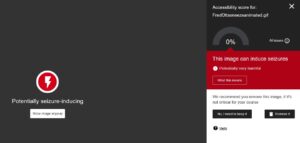
Ally error saying this image can induce seizures.

This image is missing alternative text. All images should have basic alternative text. Additional descriptions may be needed to make complex images fully accessible, but this is beyond the Universal Design goals.

  1. To add an image description, look for the low score dial next to the image and click on it. Low score icon for image in course page
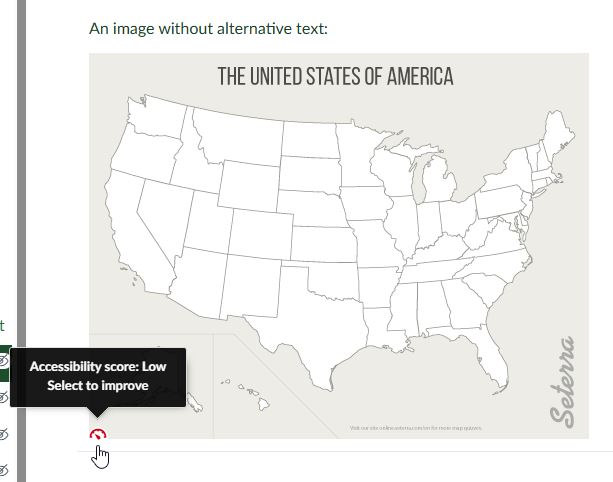
  2. Clicking on the icon brings up a detail page on the image. A preview of the image is displayed on one side of the page, and a guide for fixing the issue is on the other side. If you need more details, you can select “What this means” and “How to write a good description” for tutorials.
  3. Write a short description in the text box below Add image description, then click Add. Image description typed in the text box, and Add button to add the description to the image.
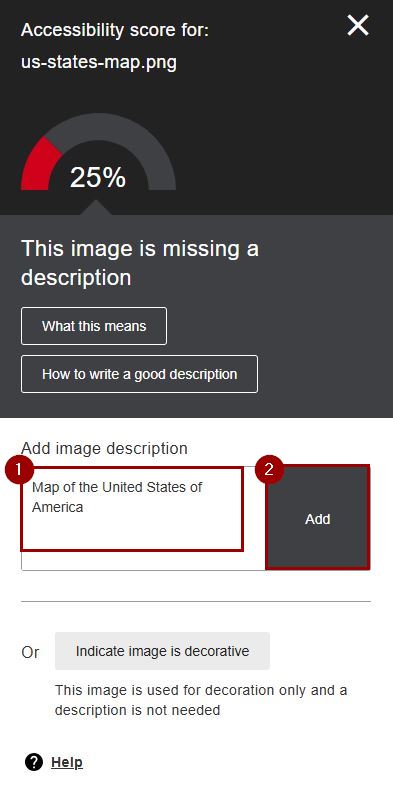
  4. There is also an option to mark the image as decorative instead of adding a description. Only use this feature if the image truly does not add any meaning that you expect students to get from the image.
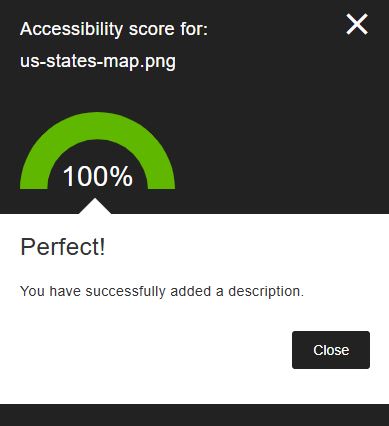
  5. You will receive a confirmation that the alternative text has been added, along with an updated score and accessibility gauge for the image. Accessibility score is now 100% for the image after adding alt text
Full Accessibility

Full Accessibility items are necessary to make Canvas content fully accessible. These items may require additional support or alternative access if needed for an accommodation.

Question Types

The quiz question types available in Canvas are mostly accessible to assistive technology. Some exceptions include:

  • Drag and drop: This feature is completely inaccessible and should be avoided.
  • Drop-down choices are not recommended unless the list of options is very long.

If a student reports that they are unable to take a quiz using their assistive technology, contact the Student Disability Center for guidance.

Math Formatting

Canvas natively uses MathML to format equations. This provides math in the most accessible format currently available. Screen readers and text-to-speech software are both capable of reading MathML.

  • LaTeX is not accessible without converting to MathML or MathJax.
  • Images of math equations are not accessible without alt text.

Extended Time

Extended time is a frequent accommodation for students with disabilities. Below are resources on how to add extra time to quizzes in Canvas.

  • Proctoring solutions create potential access barriers for students with disabilities who use assistive technology. Students who have testing accommodations may need to use a different proctoring solution if their accommodation is not compatible. Be flexible with your testing requirements, and provide students with the ability to communicate any barriers they experience with assistive technology.
  • Substitute the Honor Pledge for proctoring software if accommodations cannot be made with the software.
  • For questions about testing accommodations with proctoring software, contact the Student Disability Center.

Anthology Ally: Full Accessibility Issues

Although Ally automatically meets the Universal Design Goal for scanned PDFs in Canvas, leaving them as they are will not improve the accessibility of these documents or improve your course’s accessibility score. Ally provides prompts to guide you in finding digital copies to replace the scans.

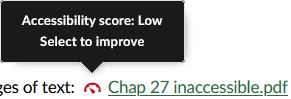
  1. Click on the low score icon next to a PDF on a Canvas page to go directly to the instructions on fixing an individual file. Accessibility icon next to a PDF with a low score
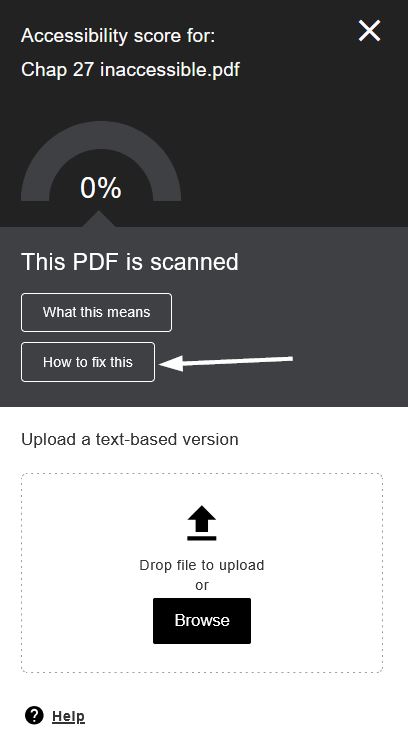
  2. Once you click on a specific file, a detail screen will load with a preview of the PDF on one side and details about the error on the other. Click on How to fix this to see prompts for fixing the file. How to fix this button in the PDF error detail page
Option 1: Upload a Digital Version

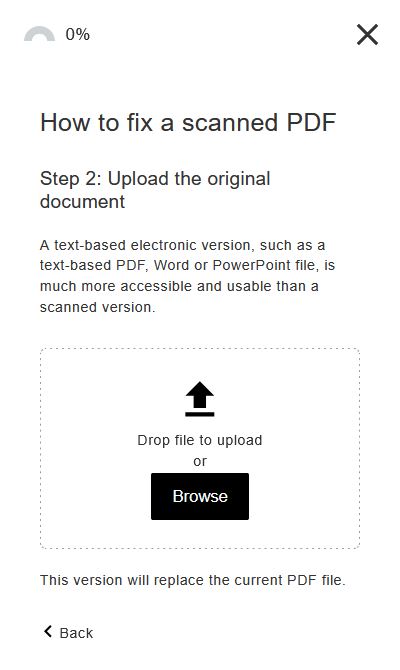
The first step asks if you can get an original or text-based version of the file. This is the preferred way to resolve issues with scanned PDFs, as a digital original will be much higher quality than a scan.

  • If you do have an original or digital version, select Yes to continue to upload a new version. Drag file or browse to upload the original document
Option 2: Add a Library Reference
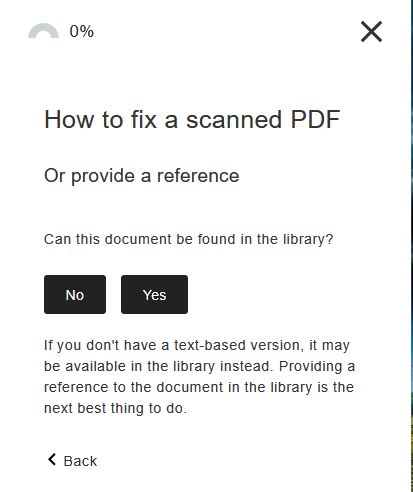
  • If you do not have an original or digital version, select No to continue to other options.
  • The next option is to add a library reference. If available, this will give students another way to get a more accessible version of the file. Can this document be found in the library? No and Yes buttons.
Ally automatically meets Universal Design Goals for all PDFs in Canvas, both scanned and digital originals (unless the scan is poor quality). Any remaining PDF errors in Ally relate to standards that make PDFs fully accessible.

Although Ally’s instructions suggest converting to another file format, this is not recommended. These errors require Adobe Acrobat Professional to edit the PDFs effectively. Please see PDF – Converted from Other Programs for more information on full PDF accessibility with Acrobat Professional.

Errors include:

  • This document contains tables that are missing headers.
  • This document does not have the correct language set.
  • This PDF is missing a title.
  • This PDF is untagged.
  • This image does not have a description.

Complex images require a long description as well as a basic description as alternative text. The long description may be in the body of the text, the notes section of a PowerPoint slide, or linked in an appendix. See Long Description for more details on providing meaningful descriptions for complex images.

Long description is a full accessibility requirement. Additional support is available for students with full accessibility accommodations.

Applicable Concepts

Text recognition is the process of converting an image of text to actual text so that technology can interact with it. 

More about Text Recognition

Headings provide information about the structure of the document at the code level, creating an outline that helps users navigate the content.

More about Headings

Links should tell the user exactly where they’ll go if they click on them. They should make sense when taken out of context of the surrounding text.

More about Descriptive Links

Color contrast describes how one color stands out from another color. It’s especially important to consider the color contrast between text and its background, and between sections depicting meaning such as pie charts, maps, etc.

More about Color Contrast

Alternative text (alt text) is a written alternative to an image. It’s a short description that can be read aloud by screen readers for users with visual impairments.

More about Alternative Text

Helpful Tools

Microsoft Office products are supported through our institutional licensing and support the required level of accessibility.

Microsoft PowerPoint Tutorials

Microsoft Office products are supported through our institutional licensing and support the required level of accessibility.

Microsoft Word Tutorials

Anthology Ally is a Canvas plugin that allows you to check for accessibility within an entire Canvas course and guides you through fixing problems. It can scan the course shell and documents uploaded into the course.

TidyUp is a Canvas plugin that allows you to find and delete unused files and folders, find where files are linked in a course, and view a detailed list of everything present in a course

UDoIT Advantage is a legacy Canvas plugin that allows you to check for accessibility within a course and prompts you with instructions on fixing problems. Anthology Ally is the new recommendation, though UDOIT remains available.

Anthology Ally, TidyUp, and UDoIT for Canvas Tutorials