
Where to Start With Forms

For a form to be accessible, it should be usable by people who use a screen reader or a keyboard to navigate.

  • A user should be able to complete a form using only a keyboard, including interacting with dialog boxes.
  • Form fields should be labeled descriptively.
  • Tab order should be logical.

Universal Design Goals

All employees are expected to work toward meeting Universal Design Goals for their content.

Open the form editor tool. Go to Tools, Prepare Form. (Earlier versions of Acrobat: Tools, Forms, Edit.)

Existing form fields will be highlighted within the document. The form field labels will appear inside fields. Check these labels to make sure they are descriptive. In the example below, you can see that the Student Name field matches the label.
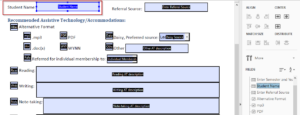
Form with fields highlighted. Student name matches the form field label.

If the label isn’t descriptive, double-click on it to edit. In the Text Field Properties dialog box that appears, edit the Name field.

The Name and Tooltip should be the same.
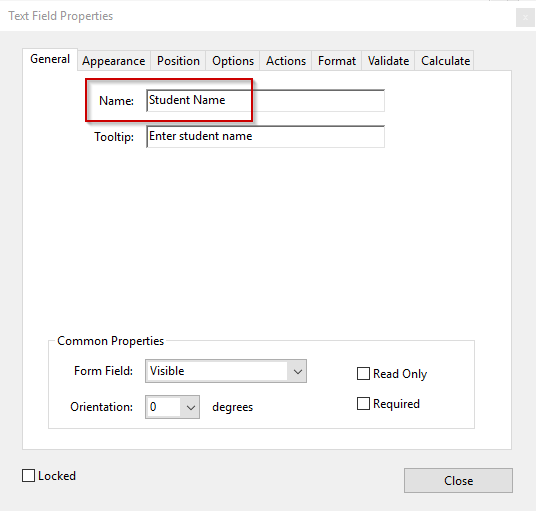
Text Field Properties window showing Name and Tooltip fields.

Once your labels are correct, check the tab order. Click on the drop-down menu icon next to “Fields” in the Form toolbar (Acrobat DC). Select Show Tab Numbers.
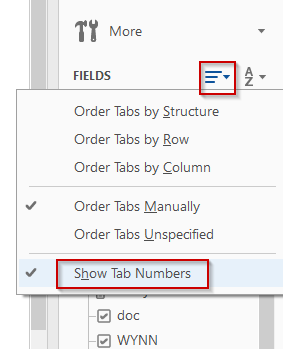
Show Tab Numbers in the Fields dropdown menu

You should see numbers inside of each form field that tell you the tab order. In the screen shot below, the logical order for the check boxes should be mp3 (6), PDF (7), then Daisy (8). With the current incorrect tab order, it will be read as mp3 (6), Daisy (7), then PDF (8).
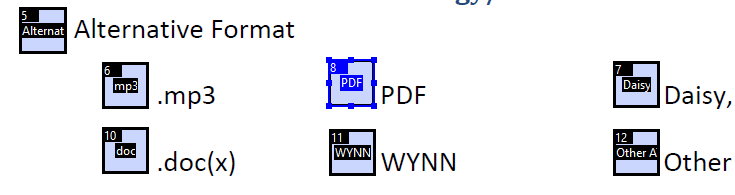
Form field labels out of logical order

To fix the tab order, select and drag “PDF” upwards into the correct position between mp3 and Daisy on the Form Fields toolbar.
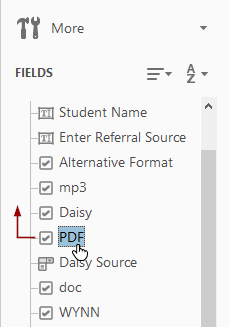
Fields sidebar with form field labels that can be dragged up or down

Online forms can be made more navigable by organizing related elements using the <fieldset> and <legend> tags. It is also important to clarify the relationship between labels and form elements using the <label> tag and its for attribute.

Consider the following when working with forms:

  1. Make sure form elements can be navigated from the keyboard. The Tab key should move focus sequentially through the form.
  2. Add labels to form elements, and use the <label> tag’s for attribute to point to the ID of the associated form element.
    • The for attribute keeps labels and form elements linked, regardless of where they appear on the page.
      • Example using the form <input> element: <label for=”emailfield”>Your email address:</label><input name=”email” type=”text” id=”emailfield” size=”45″ maxlength=”60″/>
    • Screen reader users typically use the Tab key to jump through form fields. Associated form labels are read for each field when the user navigates to it. Be sure to include cues within associated labels, as the screen reader will skip any nonlabel text.
  3. Group related form elements using a combination of <fieldset> and <legend> tags, which facilitate both visual comprehension and tabbing navigation for nonvisual users.
  4. Error messages should receive focus and once cleared, return to a logical location.
  5. Error messages should not reset or reload the form.
  6. Forms shouldn’t be set to time-out.
  7. If using CAPTCHA, use version 3 or later.

Applicable Concepts

For those who are unable to use a mouse, the keyboard is a primary method of navigating a computer (using the Tab, Enter, Arrow, and space bar keys). Other assistive technologies also rely on keyboard accessibility, including voice recognition and screen readers. This is why keyboard navigation is one of the most important things to check.

More about Keyboard Navigation