
Best Practices for Social Media

Social media sites are constantly updating features, which means that what is accessible one day may not be the next. One platform may also work better with a certain type of assistive technology than another. To ensure your online presence is as inclusive as possible, you can:

  • Repeat information on multiple platforms.
  • Repeat visual and audio information as text within a post.
  • Make sure information is also posted on your regular website.
  • Include an accessibility statement on your profile, with contact information.
  • Include a link to the platform’s accessibility help page on your profile.

Adding Alternative Text

Click or press on the photo open the Edit Photo menu.
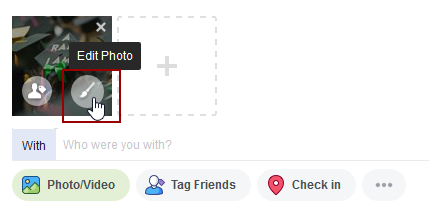
Edit photo button on Facebook post

In the Edit Photo menu, press Alt text.
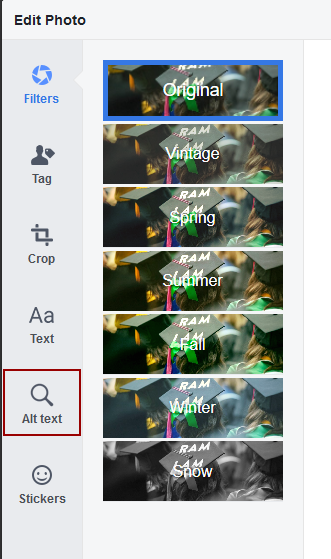
Alt Text tab on lefthand side of Edit Photo menu

Press Override generated alt text to make a text box available for adding a description.
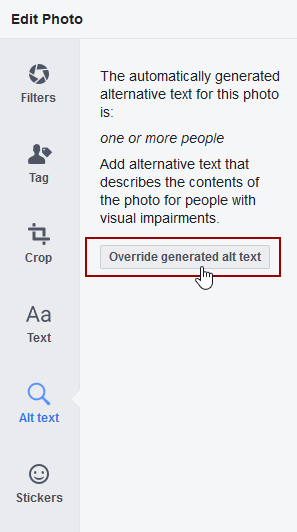
Override generated alt text button is circled in red

Note that alt text does not carry over automatically on posts shared from Instagram to Facebook. You’ll need to edit alt text in Facebook separately.

Scroll down to Advanced Settings at the bottom before sharing a new post.
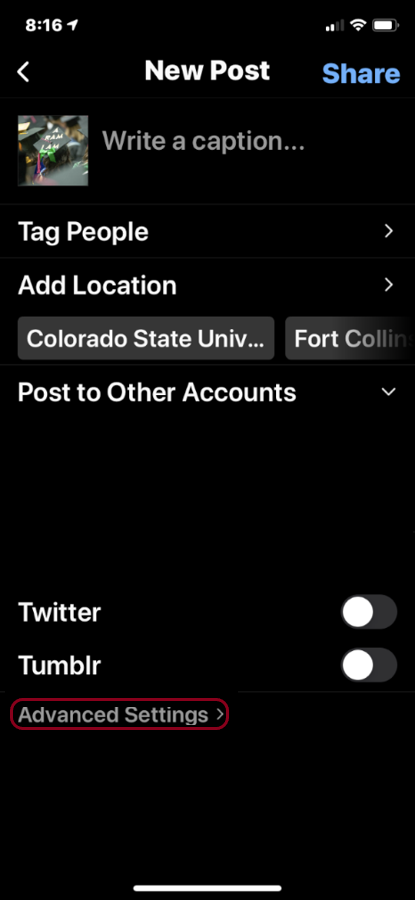
Advanced Settings is circled under Instagram post page before posting

In Advanced Settings, select Write Alt Text.
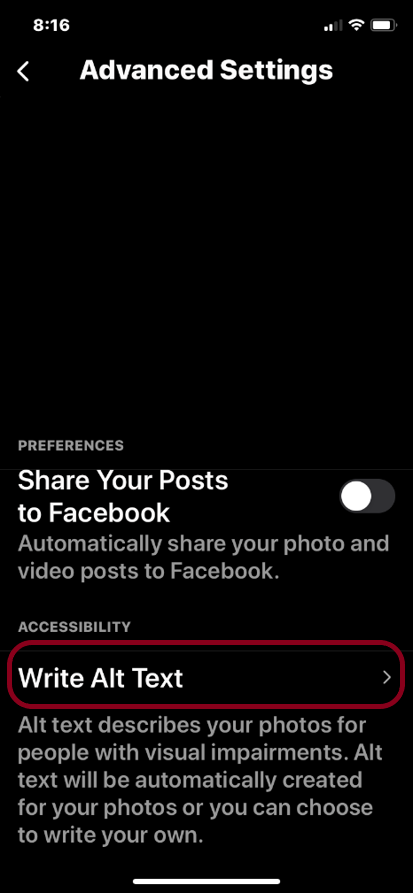
Write Alt Text button circled in red

In the new window, type a short description of the image in the text box. Select Done to return to the new post.
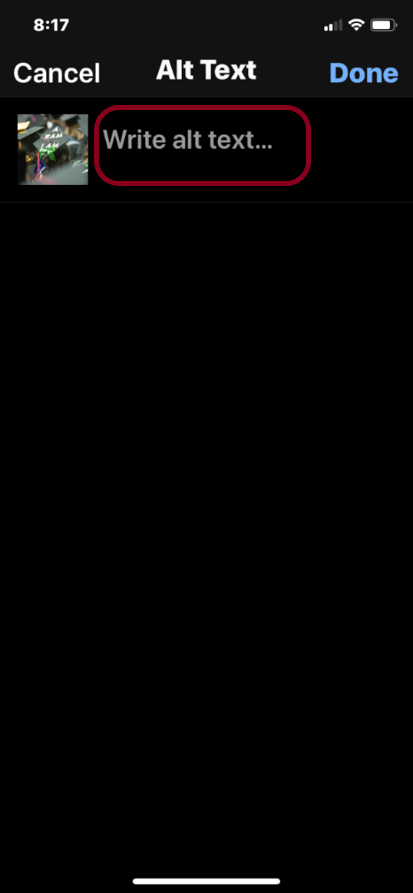
"Write Alt Text..." text box is circled in red

Applicable Concepts

Alternative text (alt text) is a written alternative to an image. It’s a short description that can be read aloud by screen readers for users with visual impairments.

More about Alternative Text

Captions, also called subtitles, provide a visual alternative to audio information. 

More about Captions