
Tables
Where to Start With Tables
- Use tables for data, not for layout.
- Have only one header row per table.
- Have only one header column per table.
- Avoid blank cells, especially in the header row or column.
- Avoid merged cells.
- Avoid title rows in the middle of a table. This is an indication that you should split the table.
Universal Design Goals for Tables
The Universal Design Goals below are based on the Electronic Accessibility Rubric. All employees are expected to work toward meeting Universal Design Goals for their content.
Table Design
When creating tables, design them with these principles in mind:
- Use tables for presenting data, not for content layout.
- Avoid merged cells.
- Avoid multiple title rows.
- When necessary, use multiple tables to maintain a single purpose for each column.
Designate a Header Row
Tables must have a designated table header row. Tutorials are available for adding a header row in specific software:
Consolidate Multiple Header Rows
One problem you may run into is that there are multiple rows with header information in a table. In this example, there are three header rows with several merged cells. We need to simplify the information so that there’s only one header row.
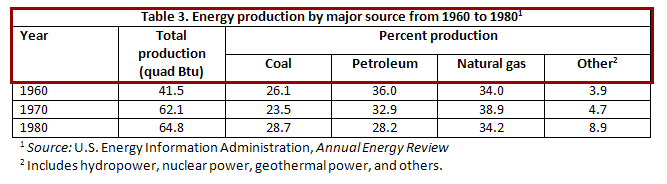
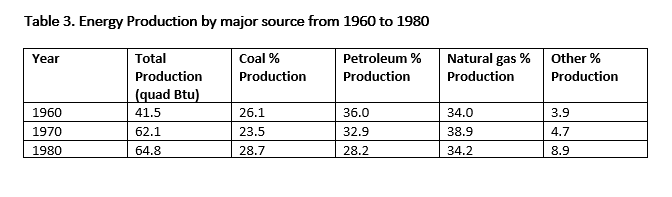
The first step is to consolidate necessary header information into one row. There’s an extra row of merged cells just for “percent production.” This refers to the four cells beneath it, coal, petroleum, natural gas and other. If we add “percent production” into each cell of the next row, we can eliminate the extra row and also the merged cells.
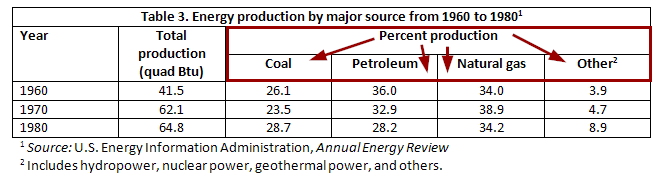
Now the table has only two header rows, but it hasn’t lost any of the information from the original table:
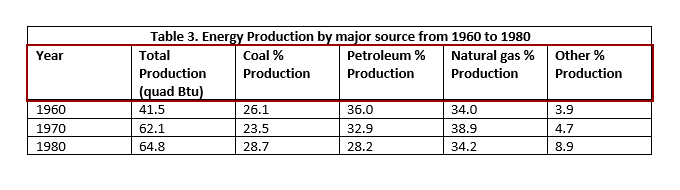
Move Overall Table Title
Often, titles are included inside a table. However, these shouldn’t be part of the table itself.
In our example table, the first row is a single merged cell with the text “Table 3. Energy production by major source from 1960 to 1980.” This is clearly the title of the table. By moving it to a heading outside of the table, we can eliminate an extra row as well as merged cells.
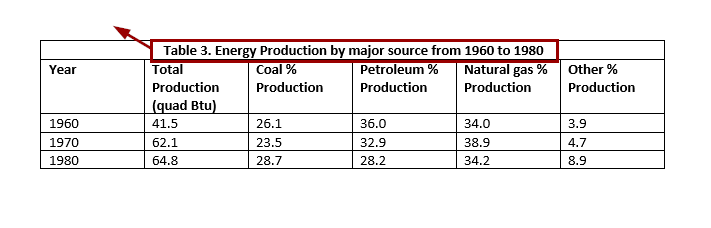
Now that the title has been removed, our table only has one header row. This table is much simpler and easier to read for everyone, including screen reader users:
Full Accessibility for Tables
Full Accessibility items are necessary to make the content fully accessible. The expectation for employees to work toward full accessibility for their content is dependent on the employee’s role; see the employee responsibilities page for more information. Full Accessibility items may require additional support or alternative access if needed for an accommodation.
Remove Nondata
- Tables are for presenting data. Any explanation of the table or extra details should be explained in the surrounding text, not within the table itself.
- Move any text that is not data or header information outside of the table into a caption or table description.
Unmerge Cells
Merged cells usually exist for visual appearance, but they create confusion for screen reader users.
- Repeat information in cells if necessary.
- Leaving cells blank is not ideal for accessibility, but is better than merged cells.
Split into Multiple Tables
Splitting a table can eliminate merged cells, extra titles and other content that is not truly part of the table data.
To know where a table may be split, look for:
- Blank rows.
- Extra title rows in the middle of the table.
- Rows with merged cells in the middle of the table.
Move Remaining Extra Content
Move any remaining content of merged cells outside the table.
What Is a Table Header Row?
A table header row is the top row of a table that acts as a title for the type of information they will find in each column.

It’s common to manually bold the top row to signal this information visually, but it’s important to mark table headers at the code level so the change is also structural.
Why Use Table Header Rows?
Marking a table header row or column tells screen reader users how to read the table. They can navigate table cells and hear which column they are currently in. This turns random data into meaningful data.
In the following video, there’s an example of what a screen reader user would hear when navigating a table that has a header column and row assigned.
Benefits to Visual Readers
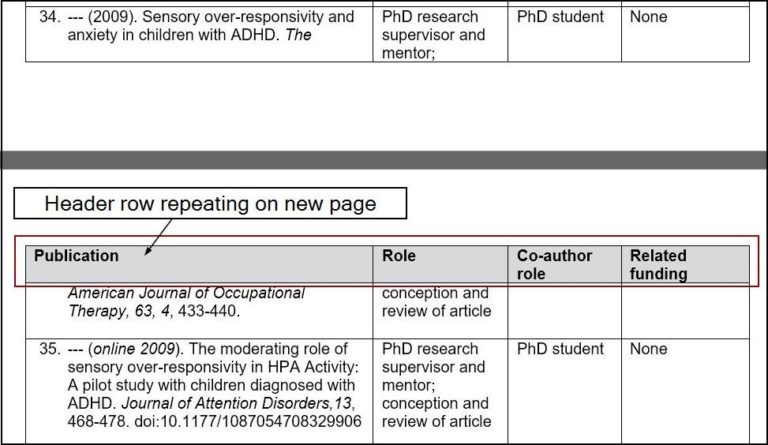
Marking a table header row also benefits visual users. With tables that continue across more than one page, it helps the reader keep track of where they are without flipping back to the first page.
Applicable Concepts
When images are complex, simple alternative text is not enough. In these cases, long description details everything the audience is expected to get out of the image.
Adding Table Header Rows in Specific Programs
Microsoft Office products are supported through our institutional licensing and support the required level of accessibility.