
Where to Start With Microsoft Word

The same concepts outlined here apply to other word processing formats, although other products are less accessible. Microsoft Office products are supported through our institutional licensing and provide the required level of accessibility. You may be required to use Microsoft Office for student accommodations.

Universal Design Goals in Microsoft Word

The Universal Design Goals below are based on the Electronic Accessibility Rubric. All employees are expected to work toward meeting Universal Design Goals for their content.

Video Tutorial: Adding and Customizing Headings in Word


Written Tutorial: Adding and Customizing Headings in Word

Select the appropriate heading level using the Styles toolbar on the Home Ribbon. Styles toolbar on Word

Use the Navigation Pane

Check the document structure using the Navigation Pane. Click on the View Ribbon, then check the Navigation Pane checkbox.

  • The document outline appears on the left side of the document in the Navigation Pane.
  • Click on any of the headings in the Navigation Pane to go to that section.
  • You can also drag headings in the navigation pane to quickly re-order content.
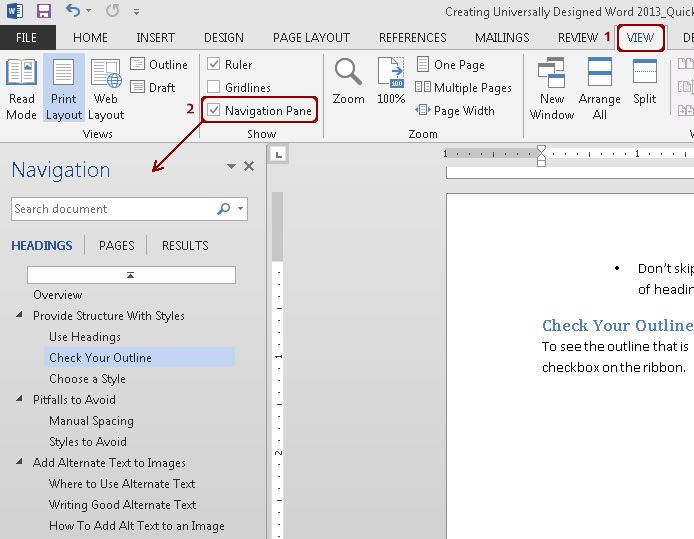
Navigation pane on Word
Customize Styles

You can quickly change the visual appearance of headings across an entire document to match your formatting preferences.

  • Set the font, color, spacing, etc., to what you would like Heading 1 to be.
  • Highlight the correctly formatted text.
  • Right-click on Heading 1 in the Ribbon, and click Update Heading 1 to Match Selection.

Now each Heading 1 will use your preferred formatting. You should see that all Heading 1 text has changed throughout your document. (You can also click Modify for more formatting options.)
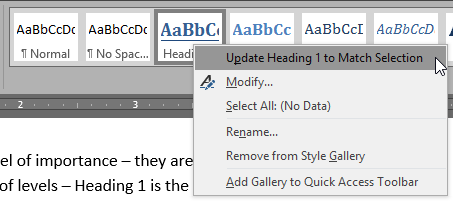
Update Heading 1 to Match Selection button

To add descriptive link text in Microsoft Office, first select the link. Right-click on the link and select Edit Hyperlink.
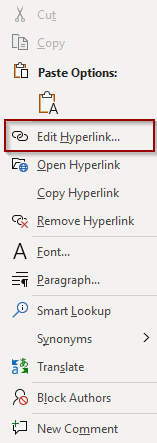
Edit Hyperlink button in Microsoft Word
  • Type the descriptive text in the Text to Display field.
  • Leave the url in the Address field. This is the link that will be followed.
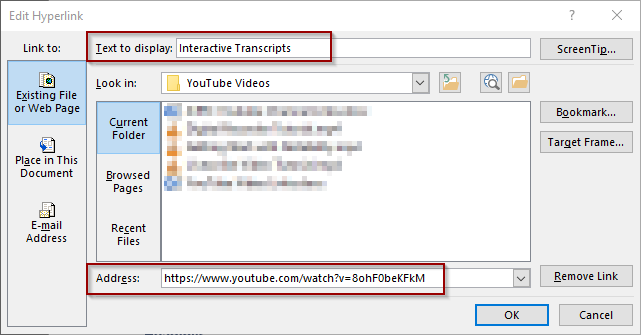
Text to display and Address sections in Edit Hyperlink menu

Choose a theme that has good color contrast, including on headings and links.

Visit Color Contrast page for instructions on checking color contrast.

Right-click on the image, then select Edit Alt Text from the context menu.
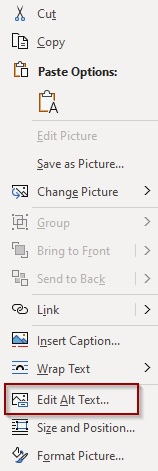
Edit Alt Text button in context menu

A sidebar will open on the right side of the document. Add your descriptive alternative text in the text box.
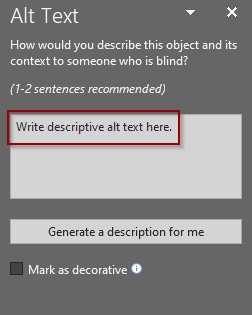
Descriptive alt text box

Table Properties

To define the header row on a table in Word in a way that benefits visual users as well as screen reader users, right-click on the top row of the table and select Table Properties.
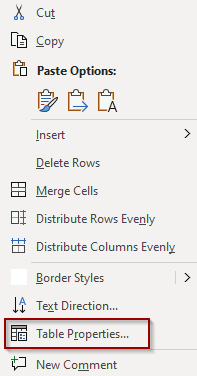
Table Properties under dropdown menu in Microsoft Word

In Table Properties on the Row tab, check the box to Repeat as header row at the top of each page.
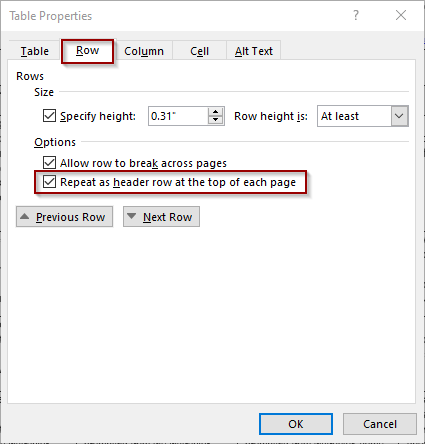
Under row tab in table properties the repeat as header row at the top button is checked

Table Design Tools

Also make sure that the header row and/or column is set in the Table Design Tools. Setting the table headers here does not allow the header row to repeat on multiple pages but it remains important, especially when saving to another format such as PDF.

Select the Design tab in the ribbon under Table Tools.

Check the checkbox titled Header Row at the top left of the Design ribbon. If the table also has a header column, check the box titled First Column.

Header row checkbox is checked, first column checkbox is unchecked

Full Accessibility in Microsoft Word

Full Accessibility items are necessary to make the content fully accessible. The expectation for employees to work toward full accessibility for their content is dependent on the employee’s role; see the employee responsibilities page for more information. Full Accessibility items may require additional support or alternative access if needed for an accommodation.

Complex tables are those that often have more than one header row, merged cells, or additional titles in the middle of the table. These should be simplified so that they make sense with only one header row.

Visit Tables page for more about simplifying tables.

Charts and graphs are usually generated using data from tables. Include the data tables alongside charts and graphs. This provides an alternative method of gaining the same information and is helpful for everyone including screen reader users.

For complex images, tables or charts, simple alternative text isn’t enough to provide a complete understanding to your audience. Include a long description in the surrounding text or in an appendix.

Visit Long Description page for more details.

To open the built-in Accessibility Checker, go to the Review Ribbon and select Check Accessibility.
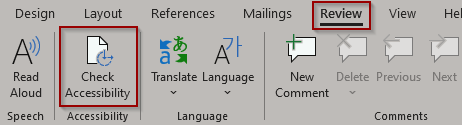
Check Accessibility button under the Review Ribbon

This opens a sidebar on the right side of the document with a list of issues discovered. Clicking on a listed item takes you directly to the location that needs to be fixed.
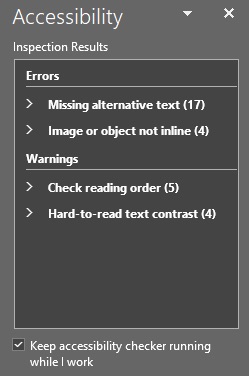
Accessibility sidebar with an errors and a warnings list

You can also monitor accessibility as you continue authoring the document. At the bottom of the page next to the page count is an ongoing accessibility status update.

Accessibility is check as Good to go in Accessibility bottom bar

Note that there are some errors in the checker that we don’t cover on this website. You can learn even more about accessibility by resolving all the issues discovered using the Accessibility Checker. That’s why we consider this an advanced step.

Applicable Concepts

Alternative text (alt text) is a written alternative to an image. It’s a short description that can be read aloud by screen readers for users with visual impairments.

More about Alternative Text

Links should tell the user exactly where they’ll go if they click on them. They should make sense when taken out of context of the surrounding text.

More about Descriptive Links

When images are complex, simple alternative text is not enough. In these cases, long description details everything the audience is expected to get out of the image.

More about Long Description

Proper table structure is vital for digital accessibility because it provides the programmatic markup—such as designated headers and row relationships—that allows screen readers and assistive technologies to navigate data cells logically and announce the correct context to users.

More about Tables

Color contrast describes how one color stands out from another color. It’s especially important to consider the color contrast between text and its background, and between sections depicting meaning such as pie charts, maps, etc.

More about Color Contrast

Headings provide information about the structure of the document at the code level, creating an outline that helps users navigate the content.

More about Headings

A table header row is the top row of a table, which acts as a title for the type of information found in each column. It’s important to mark table headers at the code level so the information is structural.

More about Table Header Rows