Adobe InDesign
Headings and Styles
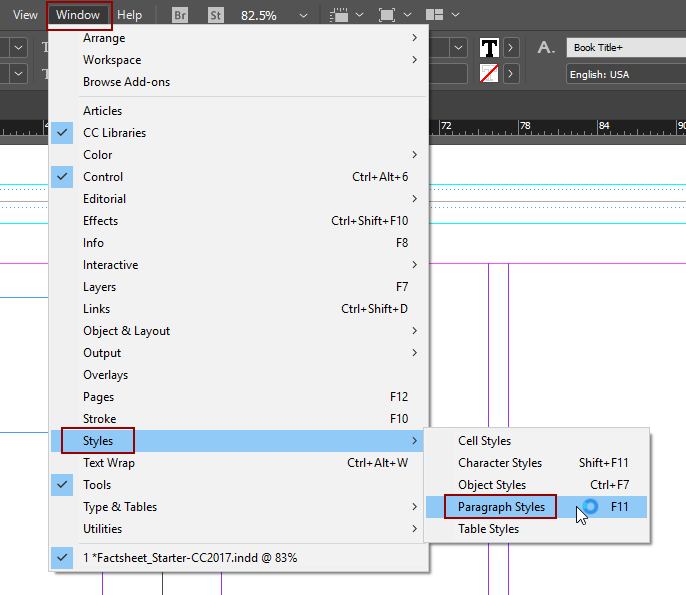
- Open the Paragraph Styles window. Select Window, Styles, then Paragraph Styles.
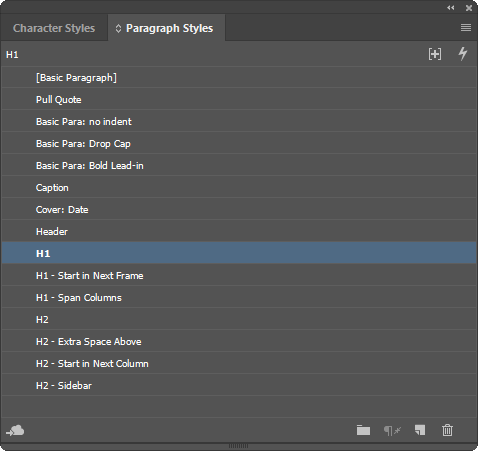
- Once in the Paragraph Styles window, select the heading level that you want to assign to the highlighted text.
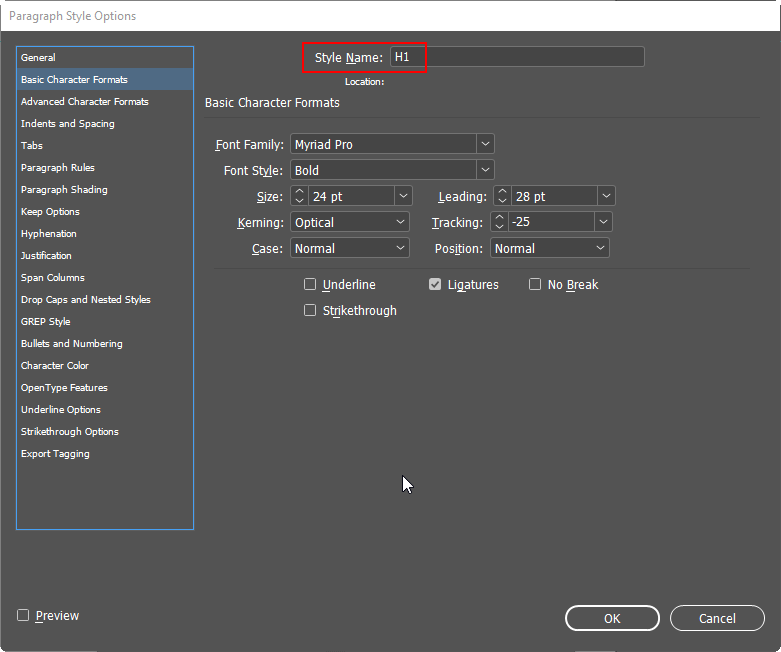
- To change the appearance of a particular style, double-click on it to bring up Paragraph Style Options.
Mapping InDesign Styles to PDF Tags
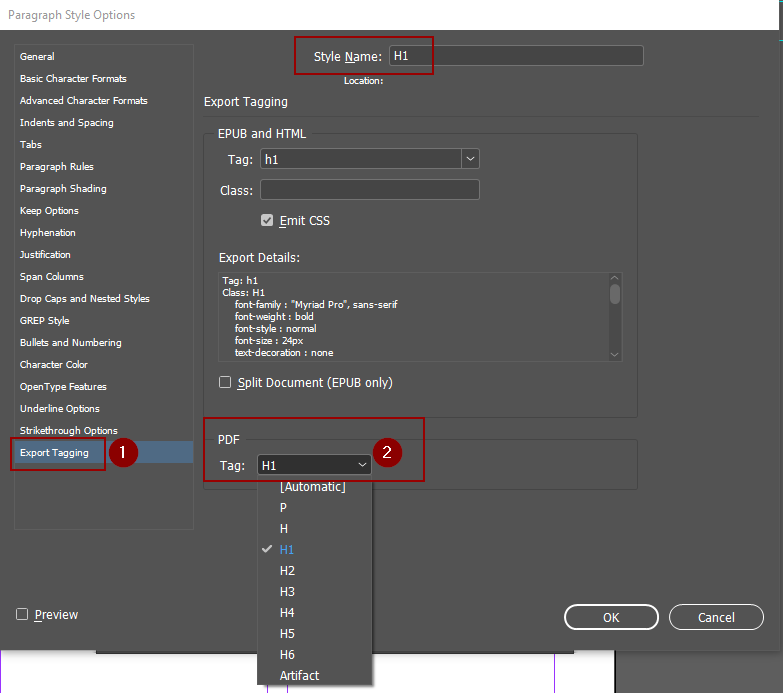
The headings structure that you create will not automatically transfer to PDF when you export from InDesign. In order to maintain the structure, specify how the InDesign styles should be recognized as PDF Tags.
In the Paragraph Styles Options window, select the Export Tagging tab. On the PDF Tag drop-down menu, select the style that you want to see in the converted PDF. In this case, H1 will map to H1:
Reading Order
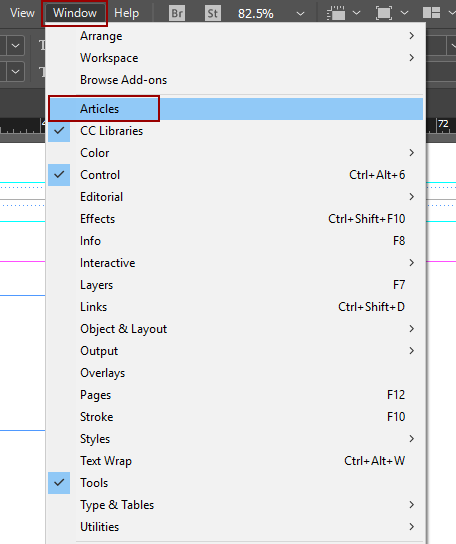
- To set reading order in InDesign, open the Articles panel. Click on Window, then Articles.
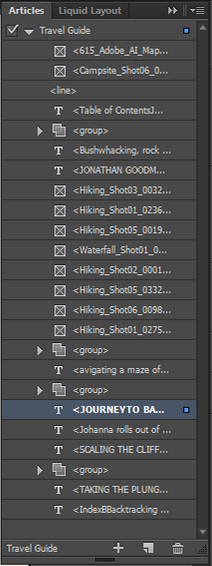
- Drag content from the document into the Articles panel in the order the content should be read. You can drag multiple items by holding the shift key and selecting them in the correct order before dragging to the panel.
Alternative Text
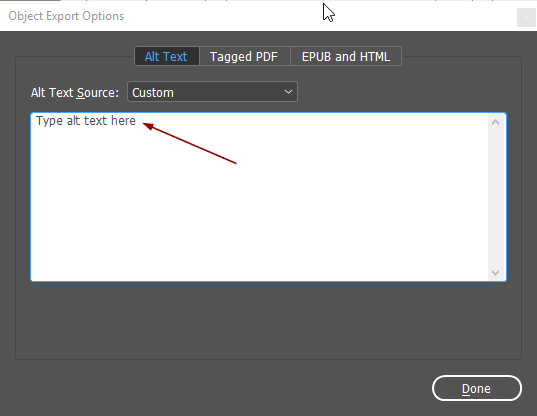
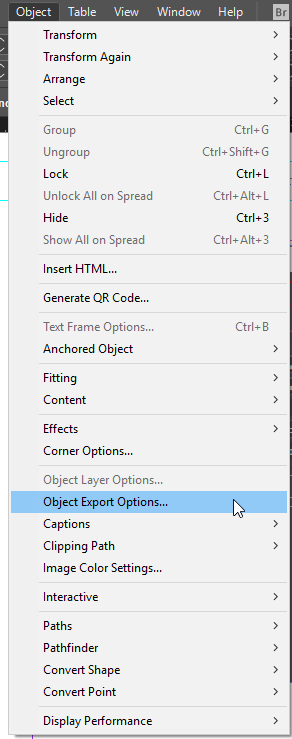
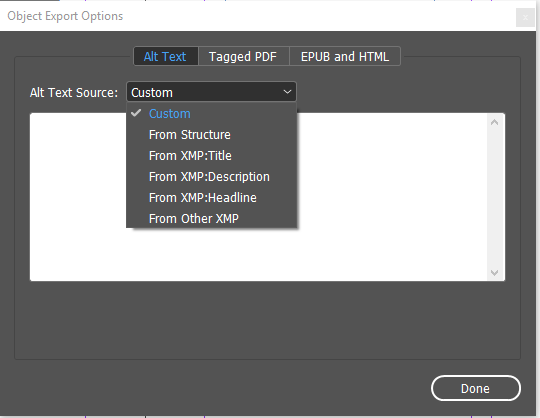
- Select the image with the Selection tool. In the menus, select Object, then Object Export Options.
- In the Alt Text tab, choose Custom from the Alt Text Source drop-down menu.
- Note: Alt text can also be imported into InDesign from Microsoft Word or from Adobe Bridge metadata. To import existing alt text, select XMP: Description from the Alt Text Source menu instead of Custom.
- Note: Alt text can also be imported into InDesign from Microsoft Word or from Adobe Bridge metadata. To import existing alt text, select XMP: Description from the Alt Text Source menu instead of Custom.
- Type the description in the text field.