SDC Student Portal Information
Portal Overview
Viewing Your Accommodations
Please note: this information only pertains to SDC students who have already been approved for accommodations by the SDC.
You can view a list of your approved accommodations at any time in the SDC Student Portal. To do so, complete the following steps.
- Login to the SDC Student Portal using your NetID and password.
- From your main dashboard, click on “My Eligibility in the left-side menu.
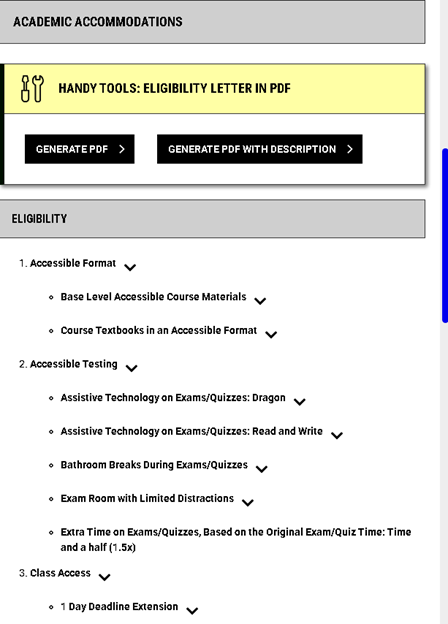
- Under “Academic Accommodations” you can see a list of all of your approved accommodations.
- Under “Housing Accommodations” you can see a list of all of your approved housing accommodations.
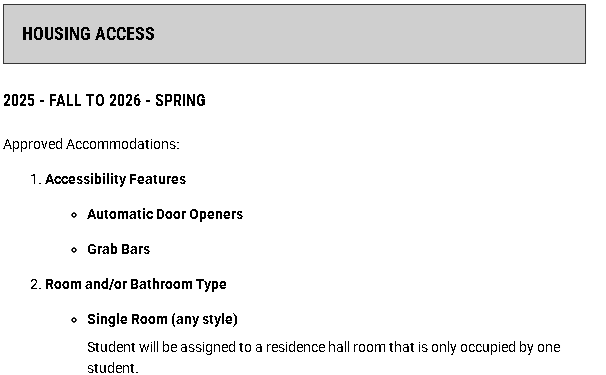
- If you click the arrow directly to the right of each accommodation, you can expand the accommodation to see a full description of the accommodation.
Generating a PDF Accommodation Verification Letter
You can generate and download a PDF accommodation verification letter which will outline all of your approved accommodations. To do this, please complete the following steps.
- Login to the SDC student Portal using your NetID and password.
- From your main dashboard, click on “My Eligibility” in the left-side menu.
- In the “Academic Accommodations” section, under “Handy Tools”, you can generate a PDF Accommodation Verification Letter either with or without full accommodation descriptions.
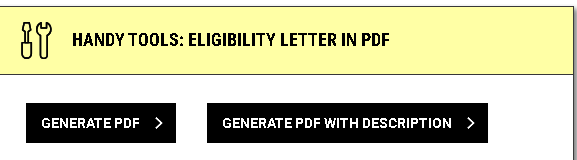
- Either click “Generate PDF” to generate a letter that has just the accommodation titles; or click “Generate PDF with Descriptions” to generate a letter that has full accommodation descriptions.
- This letter will download a PDF copy of your accommodations verification letter that you can print or save to your computer.
Requesting Accommodation Letters
Please note: this information only pertains to SDC students who have already been approved for accommodations by the SDC.
Each semester, you will need to log into the SDC Student Portal and request your accommodation letters be sent to your instructors. We recommend you do this as early as possible in the semester because your accommodations will not be in place until your letters have been sent out. You will need to do this each semester for each course you want to utilize your accommodations.
To request your accommodation letters, complete the following steps:
- Login to the SDC Student Portal using your NetID and password.
- From your dashboard, in the “Accommodations Request” section, click on “Add Requests for Courses” for the correct semester.
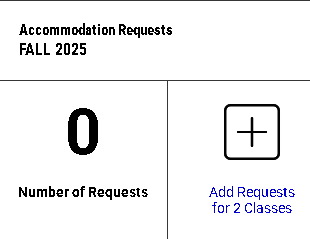
- Under the Accommodations Requests section, select the classes for which you wish to use accommodations by checking each course’s corresponding box. You also have the option to click the box at the bottom to apply the same accommodations to all of your selected courses.

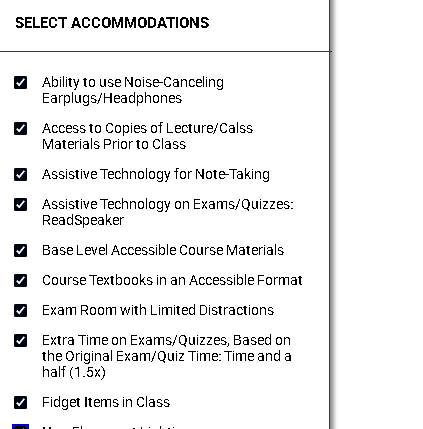
- If you have multiple accommodations available, they will be displayed on the next screen under each individual course you have selected. Select the accommodations you are requesting for each of your courses.
- Next you will select the accommodations you plan to use in each course. Please note, that if you have accommodations that only apply in a certain setting (classroom, lab, fieldwork, etc.), you should select those accommodations only for the courses in which they apply. Once you have selected the course(s) for which you’d like to select your accommodations, click “Submit Request”.
Your accommodation letters will be emailed to the instructors of the courses you selected, with you cc’d on the email. You can also view your accommodation letters in the SDC Student Portal under “My Mailbox”.
If you add any courses after you have sent your accommodation letters, you will need to repeat this process for the courses you added.
Modifying Accommodation Requests
Schedule Exams with the Accessible testing Center
To schedule exams/quizzes that you want to take in the SDC Accessible Testing Center, complete the following steps.
- Students (you) will start by signing into their profile using the SDC Student Profile.
- Students (you) will then need to use the dashboard and navigate to Accommodations which is where Accessible Testing is located.
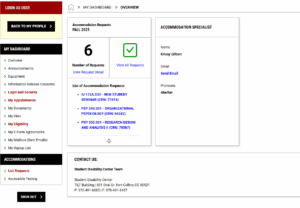
- Student will choose Accessible Testing and be directed to a new page.
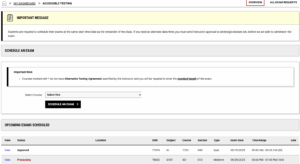
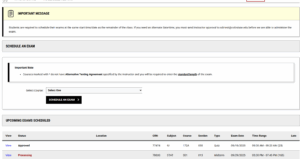
- This page will contain a button to schedule an exam.
- When you schedule an exam you can use the drop down to select a course (this will schedule for that specific course)then you will hit the button schedule exam and you will be directed to a new page.
- This page will also contain any upcoming exams that you have already scheduled.
- You will have access to the time that you scheduled the exam, the type of exam. The course and section. It will also show if you submitted your exam request late and if it’s bending approval.
- This page will contain a button to schedule an exam.
- Upon hitting select exam Student (you) will be directed to an exam scheduled page specifically for the class you are needing to schedule the exam for.
- Student (you) will be required to check all the boxes within the Accessible Testing Agreement acknowledging you understand the expectations of the testing center.
- Student (you) will also have a second box that will allow you to choose an exam type, a date for the exam (this should be the same time as the course), a time (also should be the same time as the course), the time of the exam in the classroom, and what accommodations you would like to utilize for the exam.
- Hint: if you do not choose an accommodation in Services Requested, you will not receive that during your exam. Please make sure to click ALL accommodations you would like to use.
- Student (you) can also note if you would like to use a calculator or computer (if your instructor approves this).
- Student (you) can provide any additional notes you would like to the testing staff.
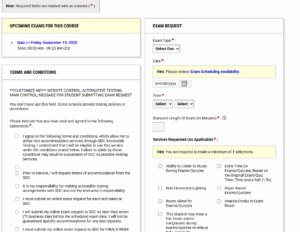
- Once the Student (you) have moved through all these steps you will hit add exam request and you are all set!
- Once the Students (your) exam has been submitted and it will show up in your AIM portal as an already scheduled exam within the Accessible Testing page of your dashboard.
- If student (you) do not see it in your AIM portal, it did not go through — so please schedule it again!
Things to note:
- If the Student (you) need to schedule an exam that is different than your class time you do need approval from your instructor. Please loop in [email protected] to an email with your instructor asking for this change.
- Students (you) are still required to schedule your exam 7 days in advance. If you schedule late the testing center does have approval to deny that request based on availability.
- Students (you) are expected to show up at the time of your scheduled exam, there will be a 5 minutes grace period, but if you are significantly past that start time we (testing staff) will need approval from your instructor to get started.
- Unless you have a bathroom break accommodation Students (you) are only permitted one bathroom break per every midterm, or every two hours during a final.
Modify an Already Scheduled Exam
Submitting Accessible Textbook Requests
If you are approved for the accommodation of course textbooks in an accessible digital format, you can submit requests for your accessible textbooks through the SDC Student Portal. To submit a request, please complete the following steps.
- Login to the SDC Student Portal using your NetID and password.
- Sign the Accessible Textbook Agreement, this will be available after you request your accommodation letters for the semester and choose your Accessible Textbook Accommodation.
- On the left-hand side of the student dashboard find Accommodations and choose Accessible Textbooks.
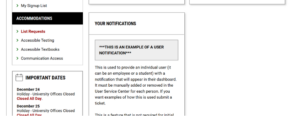
- To request a textbook choose requests on the top page of the dashboard next to overview and upload receipt on the upper right-hand side.
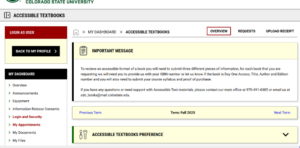
- Once you click on Requests you will be redirected to a new page. On this page you will be able to request your books, but you will also have the option to look at books you have already requested.
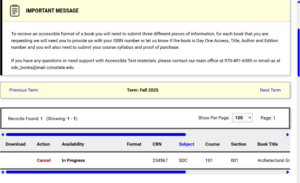
- This page will show you where we are at in the progress of your book and when you submitted the book for remediation.
- As you keep moving down the page you will be able to submit your book requests.
Reading Material Request form. This form will need to be filled out to request a textbook with our office.
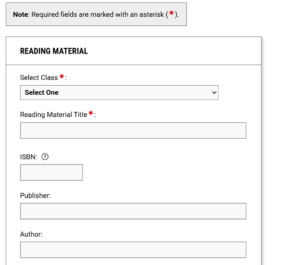
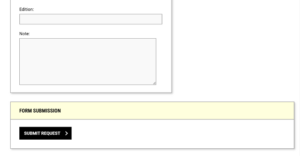
- Once you submit the form to the portal we will start working on remediating the textbook.
- After submitting the request you will be redirected back to the request page to submit further textbooks.
Navigating Accessible Textbook Module
- Similar to other areas of the student dashboard the Accessible Textbook module will have some useful information for you as a student.
- You will first see an important note from our Accessible Textbook team explaining the process of submitting a textbook to the Accessible Textbook request.
- As you move down the page there will also be a space for you to move between terms so you can see what you have previously requested and there will be spot for you to let us know your preferred Accessible Textbook file preference.
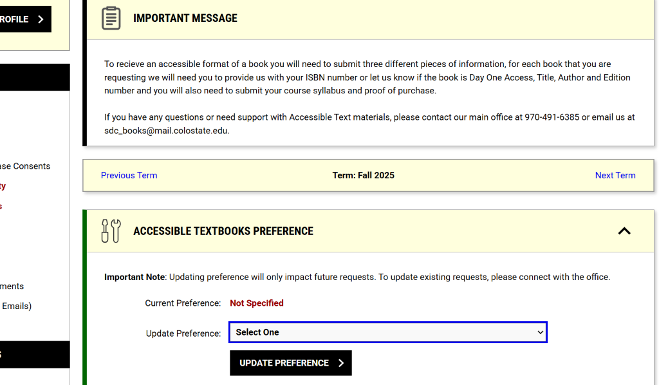
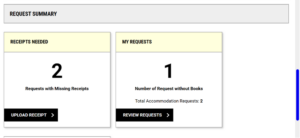
- Beneath the Accessible Textbook preferences there is a request summary.
- Within the box labeled receipts needed you will be able to upload receipts for each of your book requests.
- The books labeled my requests will take you to any requests that you have already made. This box allows you to access the receipt page instead of using the receipts tab on the top of the page.
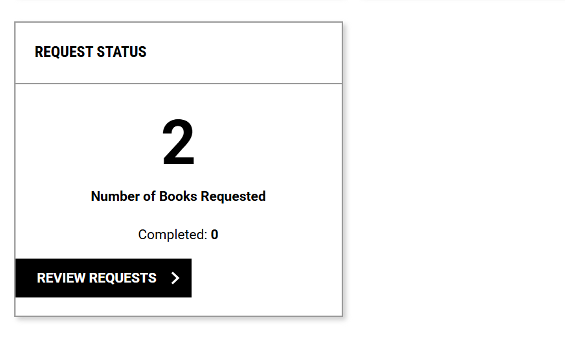
- The Request Status box will contain information on where we are in the remediation process and allow you to add additional requests if needed.
- Finally at the bottom of the page will be a section to view the books you have requested by class and cancel any requests that you have made.

Uploading Receipts
- There are two different ways to upload receipts.
- The first location to upload receipts is at the top of the Accessible Textbook Accommodation Module. The second location is through the box on the main dashboard labled Reciepts needed.
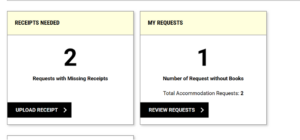
- Once you choose upload receipt you will be redirected to a new page.
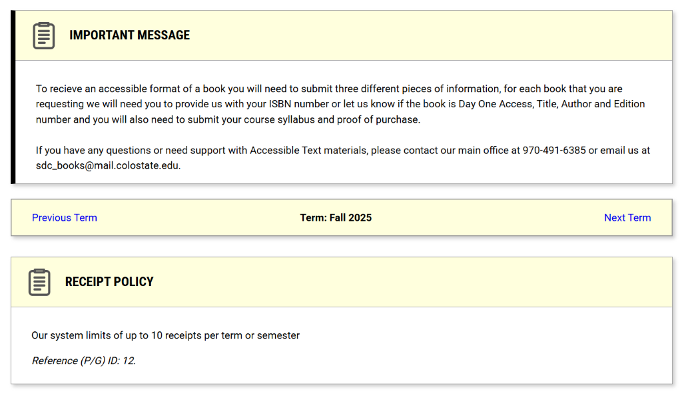
- At the top of the page is the important message from the Accessible Textbook team and there is some information about receipt policy.
- If you have more than 10 receipts to upload please connect in with the Accessible Text Team.
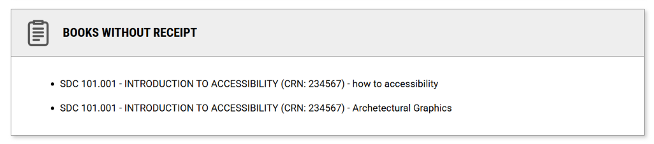
- In the middle of the page is an area that will show you what receipts are missing for each class and book.
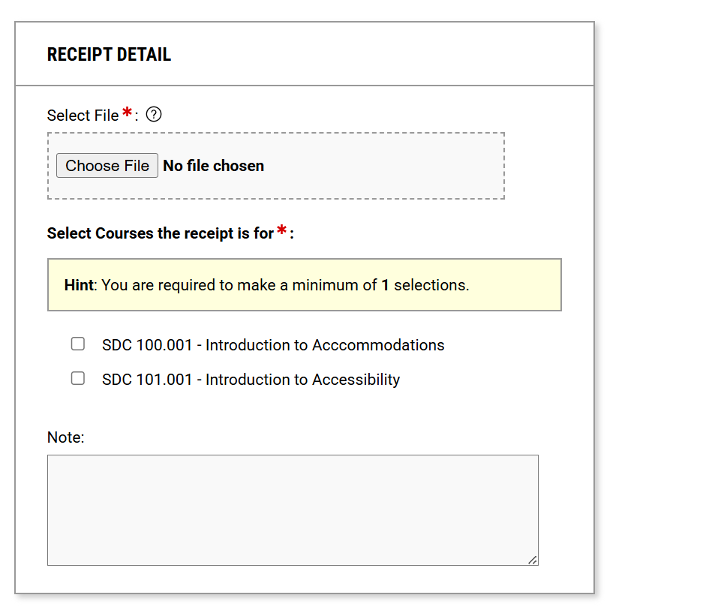
- Finally at the bottom of the page is the receipt upload page. We will ask you upload a file and include what course and book the receipt is for.
- Once you have uploaded your receipt choose upload receipt under form submission.
- You will then be redirected back to the receipt upload page to add any additional receipts you might have.
Submit Disability Documentation
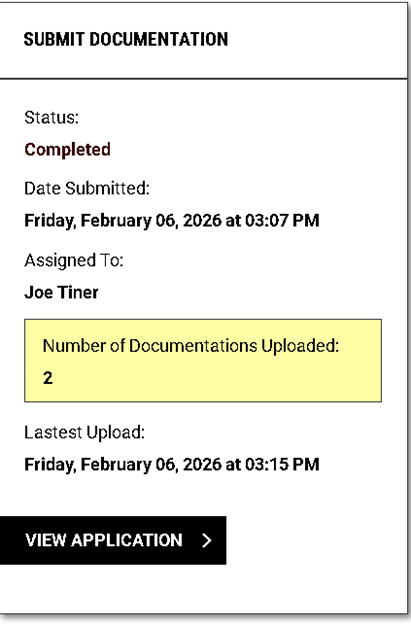
Students can submit documentation of their disability to the SDC by uploading it to their SDC Student Portal.
Submit Documentation
To upload disability documentation to the student portal complete the following steps.
- Log into the SDC Student Portal using your NetID and password.
- Click “Submit Documentation for Review” from the left-side menu.
- Click “Start New Application”.
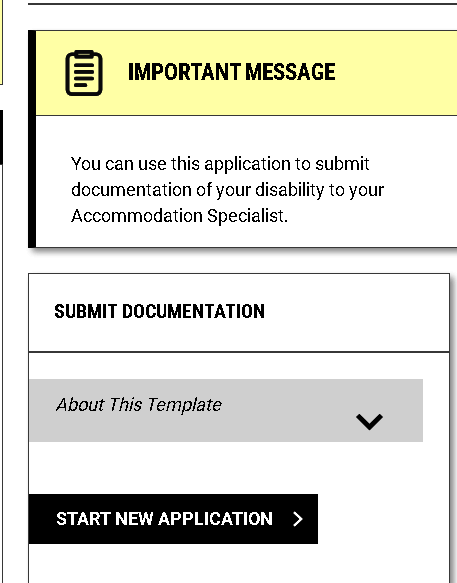
- On the “Basic Information page” answer the required questions.
- For “Start Term” the current term should already be selected. You do not need to change this.
- Scroll down and read the agreement statement and then click “Submit request”. Then click “Confirm” to confirm that you want to submit the request.
- On the “Upload Files” page review the information about our documentation guidelines.
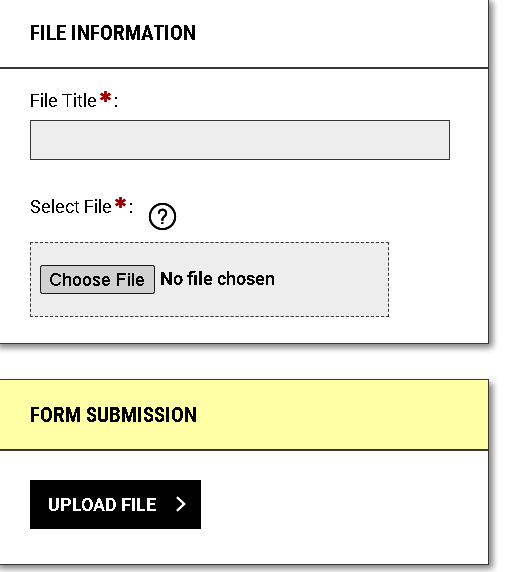
- Scroll down to “Upload Files for Users”.
- Under “File Information” enter a name for the file you are submitting. Please include your name and what type of documentation the file is. “E.g. Cam Ram 504 Plan).
- Select the file you want to upload.
- Click “Upload File”.
- Once you upload a file, it will appear in the list of uploaded files at the bottom of the page.
- Repeat this process for all of the files you want to submit.
- Once all of your files are uploaded, you can close the webpage.
- Your Accommodation Specialist will review the files and follow up with you regarding any next steps.
- Important Notes
- You will receive an automatic email to confirm your application was submitted.
- Once you have submitted an application, you will not be able to submit another one until the current one is reviewed.
View Previous Application Submissions
If you want to review your previous applications or check the status of an application, complete the following steps.
- Log into the SDC Student Portal using your NetID and password.
- Click “Submit Documentation for Review” from the left-side menu.
- You will see a list of previously submitted applications and their status.