
SDC Instructor Portal Information
Viewing Accommodation Letters
Instructors can view a list of students and their accommodations in their course at any time through the SDC Instructor Portal. Please notethat instructors are not required to use this feature. Instructors will receive notice of each student’s accommodations through an individual accommodation letter sent to them via email.
To view accommodation letters in the SDC Instructor Portal, please complete the following steps.
- Login into SDC Instructor Portal using your NetID and password.
- When you log into the portal, you will be presented with a reminder about student privacy policies. You will need to review this information and then click the “Continue to View Student Accommodations” button. before you can continue to access the portal.
- Once you have entered the portal you will be presented with a list of students who have requested to use their accommodations in your course.
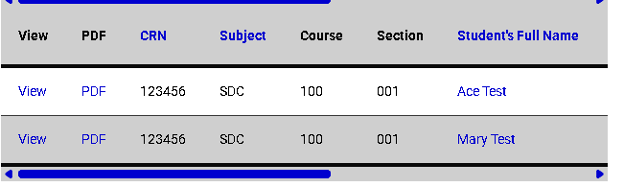
- You can view the student’s accommodations by clicking either “View” or “PDF” next to their name in the list.
- Clicking “View” will open a window displaying the students’ accommodations.
- Clicking “PDF” will download a copy of the student’s accommodation letter to your computer.
- After you have used either method to view the student’s accommodations, the “status” column will change from “emailed” to “read”.
Exporting a Spreadsheet with Accommodation Info
The SDC Instructor Portal allows instructors to export a spreadsheet with accommodation information. To export a spreadsheet, please complete the following steps.
- Log into the SDC Instructor Portal using your NetID and password.
- Navigate to the box labeled “Export Data: Students” and click the down arrow in the box.
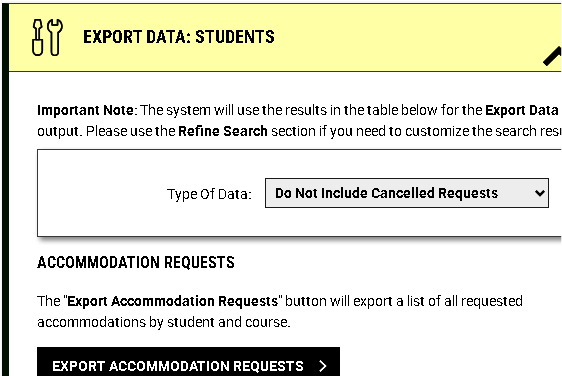
- Select the data that you would like to export.
- For most instances you will want to select, “Do not include cancelled accommodation requests”.
- Click the “Export Accommodation Requests” button to export a list of all requested accommodations by student and course.
- An Excel spreadsheet will automatically be downloaded to your computer.
Adding a Co-Instructor to a Course
Instructors will have the ability to add a co-instructor to their course in the SDC Instructor Portal. This is beneficial for those who may have teaching assistants or for course coordinators who coordinate multiple sections of one course. Whoever you add as a co-instructor will have access to the accommodation information of students who provide an accommodation letter for your course.
To add a co-instructor, you will need to do the following:
- Log into the SDC Instructor Portal with your NetID and password.
- On the left-side of the page click the “Add Instructor” button.
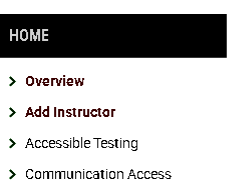
- Click on “Add Instructor.”
- In the “Personal Information” section, enter the information:
- The class you are adding the instructor to.
- Select whether you are adding an additional instructor, or replacing the primary instructor.
- The instructor’s name.
- The Instructor’s CSU email.
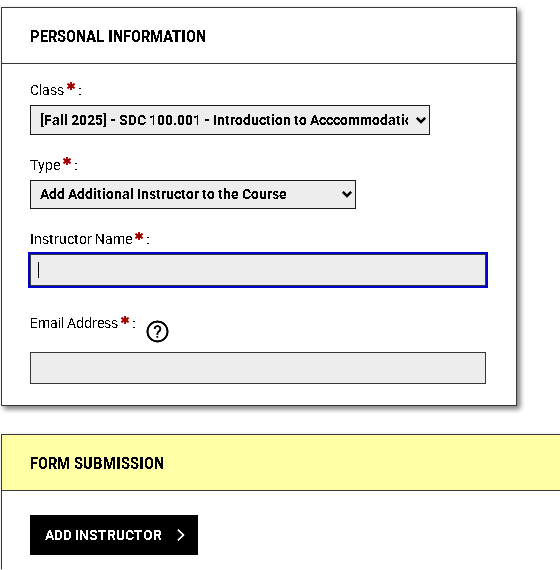
- Click “Add Instructor.”
- Your request will be sent to the co-instructor’s email directly, with a link to “Self-Verify” their account.
- The co-instructor needs to complete their self-verification. Once completed, the system will begin processing the request. Please allow up to 24 hours for the system to process.
Please note: you may allow additional instructors who need to have access to accommodation information to see the accommodation letter if the instructor needs this information to implement accommodations for academic purposes. This information must not be shared for any other purpose. Additional instructors are subject to FERPA requirements and privacy of student information.
Course Instruction Template
For instructors who have students with testing accommodations, we ask that you complete the Course Instruction Template for your respective courses in order to establish 1) the exam management method, 2) the format of the exams for the course, and 3) exam return information. Note that this is separate from Exam Date Information which will indicate to our proctors the parameters/permissions for the exam and the exam file(s) (see below).
To complete the Course Instruction Template, instructors will follow these steps:
Log into the Instructor Portal (link above) with you Eid and password
Accept the FERPA acknowledgement
Then navigate to the “Accessible Testing” page located on the left-hand panel of the screen (in the black box labeled “HOME”)
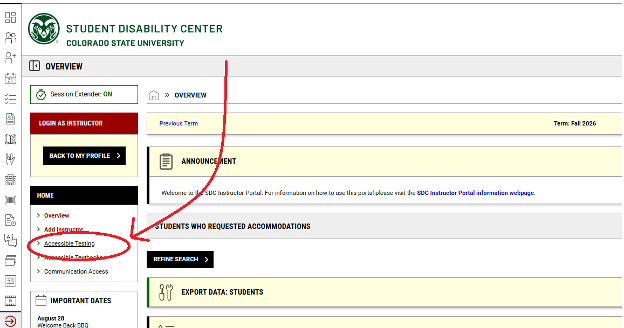
To access the Course Instruction Templates for all courses associated with your profile, select the “Course Instruction Template” tab at the top right of the screen.
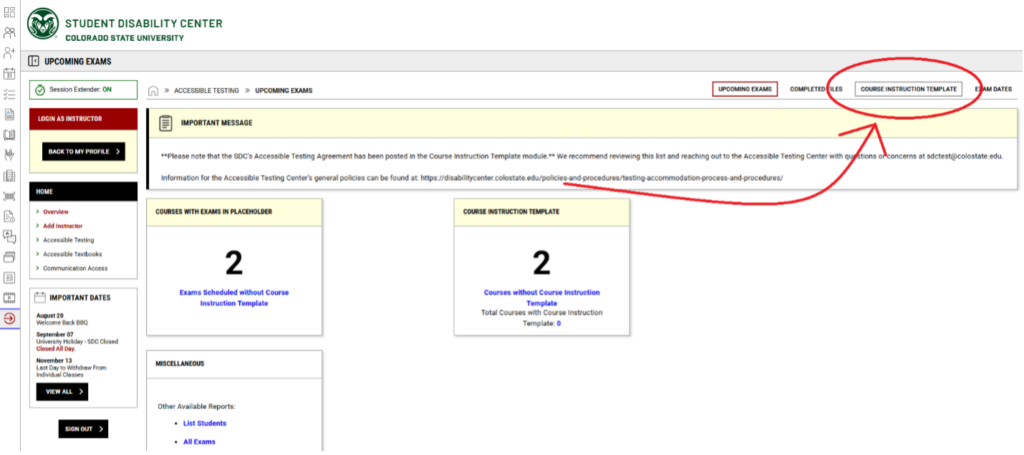
If there are any courses that are missing from this list, please complete the “Add Instructor” form (see above for steps).
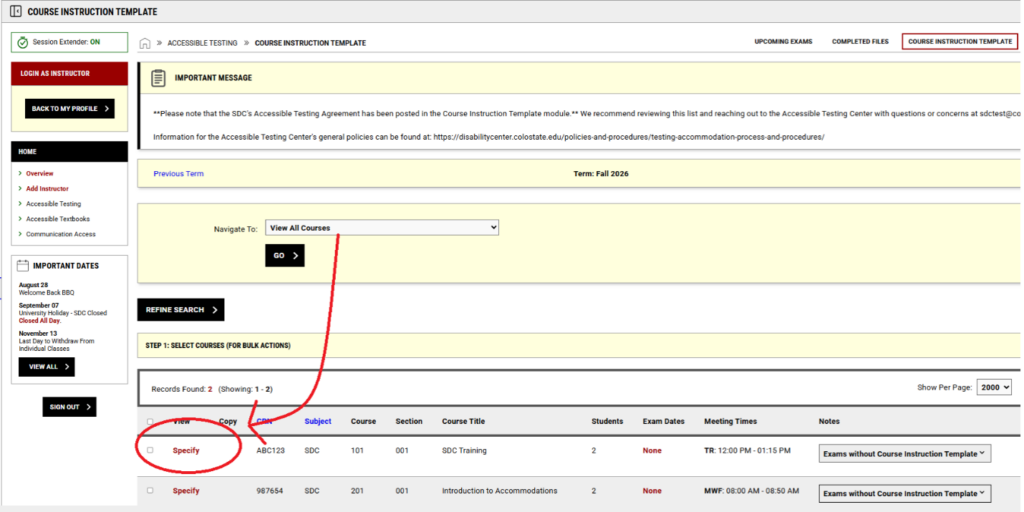
Then select the red-text stating “Specify” to navigate to the specific courses Course Instruction Template. Note that you are able to answer in bulk to all courses if the responses for all courses are the same.
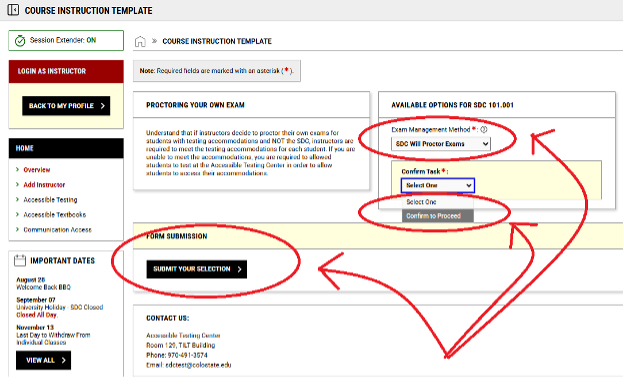
First, you will be asked to indicate the “Exam Management Method” which is either, 1) I will proctor my own exams, 2) My course has no exams (which will remove your course from the Accessible Testing portal), 3) SDC will proctor exams (which is the norm for courses with testing accommodations). Keep in mind that if you decide to proctor the exams for your course, you will be required to meet all testing accommodations for all students on each respective exam.
If you intend for the SDC to proctor exams, select “SDC Will Proctor Exams” from the drop-down menu, “Confirm to Proceed”, and “Submit Your Selection” at the bottom of the page.
Next, you will be asked to indicate that you have read and understand the general policies of the Accessible Testing Center (located on left of the page), indicate the general format for exams, and list the department office you would like completed exams to be returned to. If the course is online, you may indicate “online course – no delivery needed”. Lastly, we ask that you provide a contact number for the event of medical emergencies in the testing center.
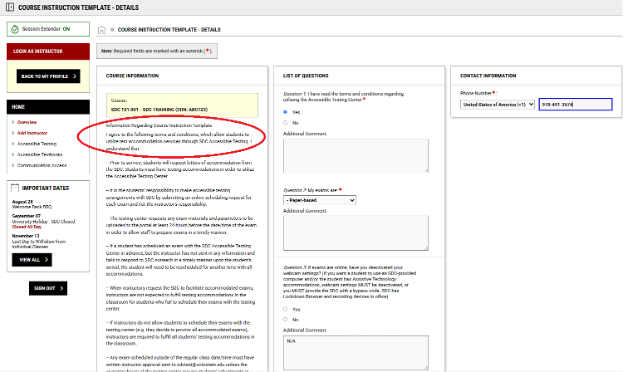
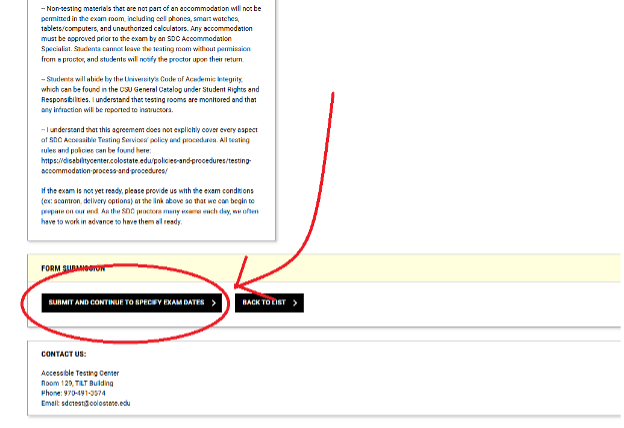
To ensure that you’re responses have been saved, scroll to the bottom of the page and select “Submit and Continue to Specify Exam Dates”.
Setting Exam/Quiz Dates
To set exam dates for your course which will automatically populate for your students’ scheduling, complete the following steps (note that you cannot set exam dates until the Course Instruction Template is complete):
Log into the Instructor Portal (link above) with you Eid and password
Accept the FERPA acknowledgement
Then navigate to the “Accessible Testing” page located on the left-hand panel of the screen (in the black box labeled “HOME”).
Next, select the “Course Instruction Template” tab located on the top right of the Accessible Testing page which will take you to a list of your respective courses.
.
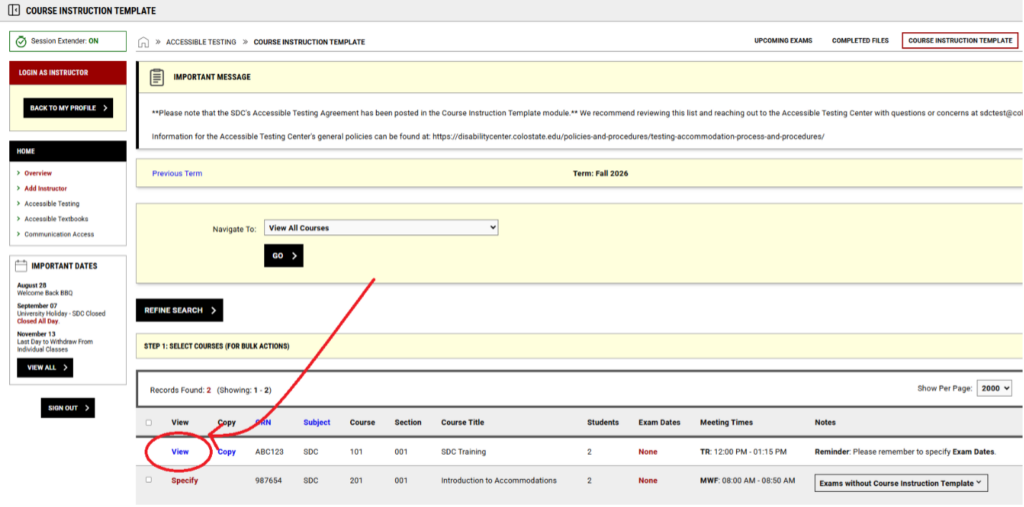
Then select “View” for your course and section, and you will be taken to the page where you had originally set the Course Instruction Template.
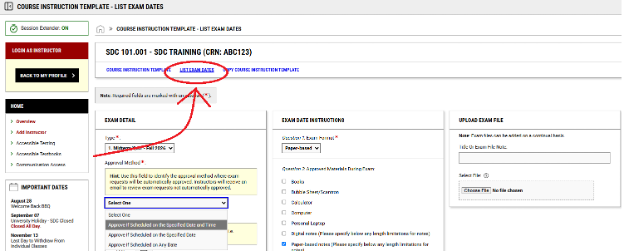
Select the blue-text that states “List Exam Dates” and you will be asked to specify a range of exam information (e.g. approved ranges for scheduling, exam format, approved materials during the exam etc.) for the date/time.
Be sure to select “Save Exam Date” at the bottom of the page to ensure that the exam information is stored.
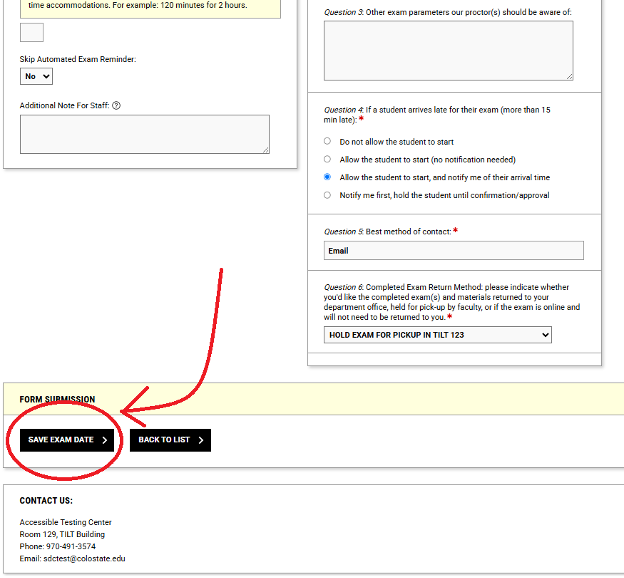
Once the exam date is saved, it will automatically populate for students to select in the Student Portal.
Note that you are able to set exam dates without needing to provide the exam file – exam files can be submitted as we are closer to the date of the exam, and exam parameters/information are still useful to set for both accommodated students and testing center staff to prepare for your upcoming exams.
If you have any questions regarding the questions contained in the List Exam Dates tab, don’t hesitate to contact [email protected] for more information.
Exam File Uploads
Exam files for students’ respective scheduling with the Accessible Testing Center can be provided in two main methods:
First, if you have completed establishing an Exam Date in the instructor portal (see instructions above), you will be able to select the date you’ve created in the Accessible Testing Portal and upload the exam file to that date, which will automatically connect the file to all students who have scheduled for that exam date/time (depending on your approval parameters). Be sure to select “Save Exam Date” after selecting your exam file so the file is saved to that date/time.
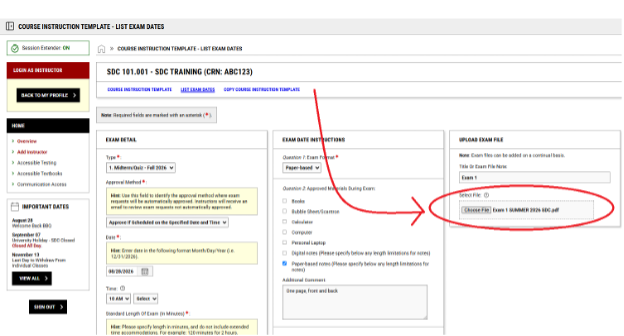
Secondly, you may also upload exam files through the main page of the Accessible Testing Portal by clicking the small box to the left of the listed students’ scheduling, select all student dates that apply,
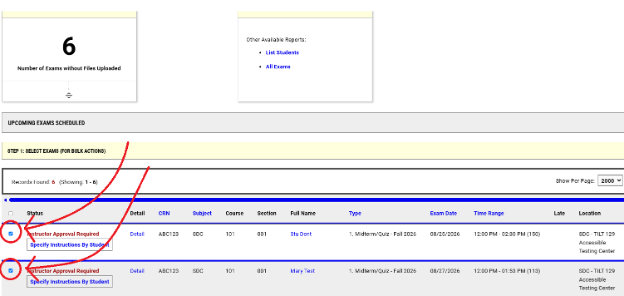
Scroll croll to the bottom of the page to select the exam file you wish to upload and select, “Upload File” to submit to the portal for the selected student scheduling.

You will also receive an email confirmation of the file being received by our system.
If there are any questions regarding your file upload, be sure to contact [email protected]
Approving/Denying Student Exam Date Requests
To approve and/or deny students’ scheduling and provide justification for the students’ need to reschedule, instructors can take the following steps:
Log into the Instructor Portal (link above) with you Eid and password
Accept the FERPA acknowledgement
Then navigate to the “Accessible Testing” page located on the left-hand panel of the screen (in the black box labeled “HOME”).
For all student exams that have not already been “Approved” through an approval method indicated in the “List Exam Dates” tab, the students’ exam dates located on the main Accessible Testing tab will have red text that states, “Instructor Approval Required”.
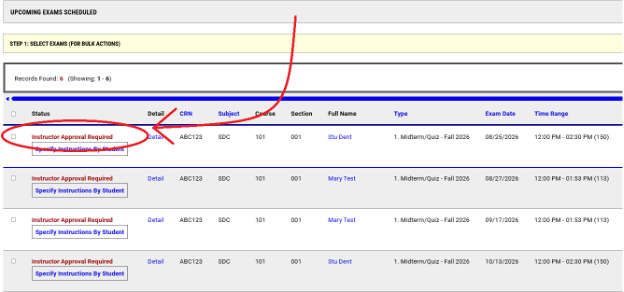
The red-text is selectable and will take you to the next page where you can either “Approve” the schedule, or “Deny” and indicate the need for rescheduling. Generally, students’ date or time of scheduling are the most common aspects to adjust, and you may select them from the drop-down menu. For all other reasons for the rescheduling, you can add the comment in the space provided which will be seen by our staff.

The Accessible Testing Center will be automatically notified for the rescheduling request and can either adjust the student per the specification indicated in the comment box (if that information is provided by the instructor) or reach out to the student to correct their scheduling.
If there are any questions for concerns for students’ respective scheduling, please contact [email protected].